Example: Structure module with knitting and not knitting rows
Not knitting rows are:
- Transferring rows.
- Casting-off rows
- Rows for post loop sinking
Creating structure module with knitting and not knitting rows:
- 1
- Open the New Knitting Element dialog box with
 New Knitting Element.
- or - Knitting Elements tool window / Generate a new module context menu
 - 2
- Make the following settings:
- Knitting Technique:
All Needles - Type of Knitting Element:
Structure Module - Filling Elements, e.g:
- No yarn color / magazine color or yarn carrier color
- No needle action
- Dimension
- Width
- Height
- 3
- Close the dialog box with OK.
- The Knitting Element Editor is opened.
- 4
- Select the Needle Actions / Colors tab.
- 5
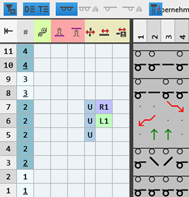
- In the drawing canvas, in the technical rows, draw the desired structure with knitting and transfer needle actions.
- The design rows are generated automatically.
- 6
- If necessary, select a color for drawing.
- 7
- Enter the control column data in the transfer rows:
- Racking Type

- Racking Value

- Racking Correction (VCI)
- Main Take-down (WMF)
- etc.
- 8
- If necessary, enter the desired data in the other control columns.
- 9
- Select transfer rows with previous knitting row or following knitting row.
- 10
- Group the selected rows with the CTRL + G keys.
|
|
|

- 11
- Check the knitting element with
 Check regarding correct entries in the knitting element.
 - 12
- If necessary, in case of a knitting element already used in the design pattern, apply the changes to the basic pattern with the
 Apply button.
 - 13
- Close the New Knitting Element tool window with
 .
.
- The knitting element is saved.