Modify design rows
When creating a knitting element, the design rows are generated automatically. It is possible to change the design rows manually.
I. Changing design rows manually:
- The knitting element is created.
- Design rows were generated automatically.
- 1
- Open knitting element with double-click.
- 2
- Activate the display of the design rows with the
 button.
 - 3
- Select the Design tab in the tool window.
- All symbols that may be used in the design rows are shown in this tab.
- 4
- Select the desired symbol.
- 5
- Draw the symbol in the corresponding design row.
- 6
- If necessary, continue with more design rows.
- 7
- Knitting Element with
 .
.
- The change is saved and marked with the M symbol (modified).
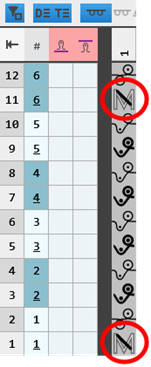
II. Delete the M symbol in the modified design row:
- In the knitting element, there are design rows marked with the M symbol.
- 1
- Select one or more design rows.
- 2
- Click the
 Calculate Design Symbols button in the tool window.
- The M symbol is deleted and the symbol of the corresponding technical row is applied automatically.