Position lined shape in the pattern
-
Position Shape
 : Via the selection menu, position the shape in an existing pattern.
 -
Position Shape on New Pattern
: By positioning the shape, a new pattern with the size of the shape is created.
Positioning the lined shape in the pattern:
- The pattern project with one or more patterns is created.
- No shape is on the pattern.
- A lined shape with the M size is created.
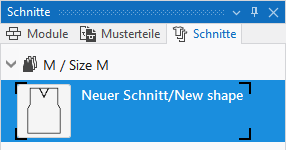
- 1
- Select the shape and open the context menu.
- 2
- Click Position Shape and select the pattern where the shape is to be positioned.
- or -
Call up Position Shape on a New Pattern... .
- The shape is floating in the design pattern.
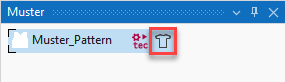
- 3
- Position the shape in the pattern.
In the layer control, toggle from  Edit Pattern Layer
to
Edit Pattern Layer
to  Edit Lined Shape Layer (Y)
.
Edit Lined Shape Layer (Y)
.
- Shape is displayed with within / outside shape and all line properties.
- 4
- Position the shape in the pattern by the Move Shape (Ctrl = by steps of ten) cursor keys.
- 5
- If necessary, the shape lines and the line properties can be adapted according to the structure in the pattern.
- Changes will be adjusted automatically in all three views.
- 6
- Make the required settings in
 Yarn Carriers.
- 7
- Continue with the processing step
 Processing.