Modify Markings for Multi-step Widening and Multi-step Narrowing
Modify the markings for multi-step widening and multi-step narrowing:
- Shape is created as lined shape.
- Shape line with Multi-step Widening or Multi-step Narrowing allocated underFunction is available.
- 1
- Select the shape line with the Multi-step Widening or Multi-step Narrowing function in the
 New Shape xx [Size M] document window.
 - 2
- Open the context menu.
- 3
- Select
 Line Properties .
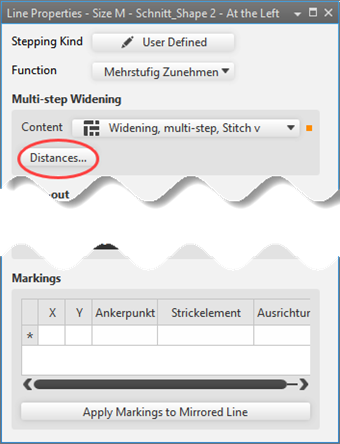
 - The Line Properties tool window is opened.
- 4
- Press the Distances... button in the Multi-step Widening / Multi-step Narrowing tab.
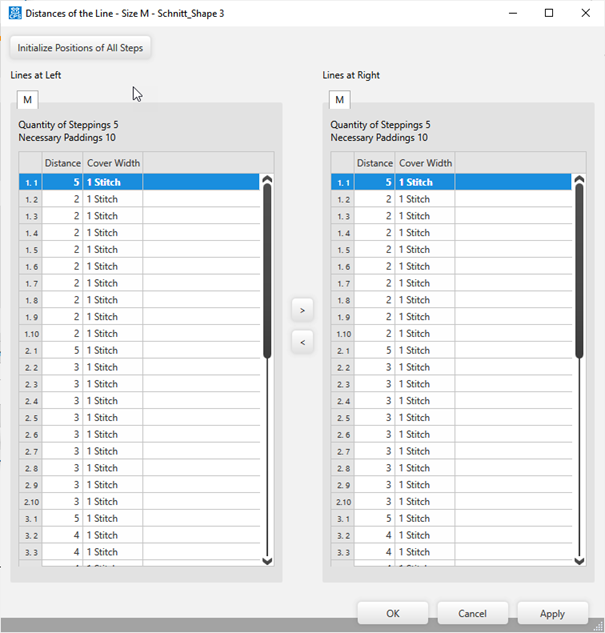
- The Distances of the Line dialog box appears showing each step (Quantity of Steppings) with the set step width (Necessary Paddings).
- 5
- Change the symmetric / asymmetric values of the table.
- 6
- Confirm changes by Apply.
- or -
Close the dialog box with OK.
- The positions of the symbols for Multi-step Widening appear in the shape.
 : You cannot position the symbols for Multi-step Widening or Multi-step Narrowing manually.