Image File Settings
In the Image File Settings dialog box you make the following settings for the export of the fabric view:
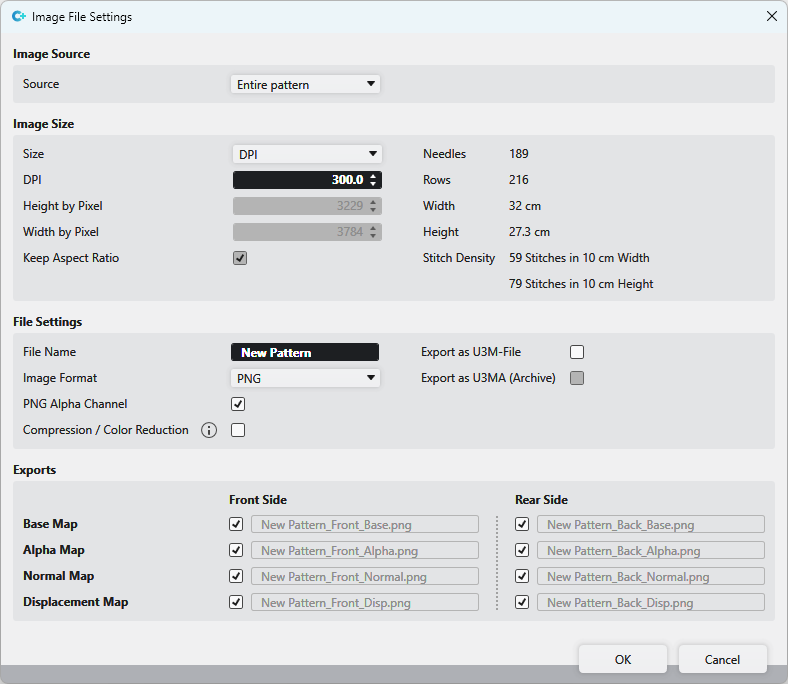
Image Source
|
Source |
Select image source
|

Image Size
|
Size |
Select size specification format DPI or Pixel |
|
DPI |
Enter DPI value |
|
Height by Pixel |
Enter height in pixels |
|
Width by Pixel |
Enter width in pixels |
|
Keep Aspect Ratio |
The size ratio of the pattern is maintained |
|
Needles |
Width of the image file in needles |
|
Rows |
Height of the image file in rows |
|
Width |
Width of the image file in cm The specification corresponds to the set stitch density |
|
Height |
Height of the image file in cm The specification corresponds to the set stitch density |
|
Stitch Density |
Specification, in the Pattern Properties selected stitch density |


File Settings
|
File Name |
Display of the pattern name |
|
Image Format |
Select image format
PNG |
|
When selecting PNG: | |
|
PNG Alpha Channel |
PNG with or without transparency |
|
Compression |
The images will be reduced to 256 colors. The quality of the images could be negatively affected. The file size, however, will be greatly reduced. |
|
When selecting JPEG: | |
|
JPEG Quality |
JPEG with specification of the quality |
|
Independently from the selection of the image format: | |
|
Export as U3M-File |
Export as U3M file U3M is a standardized format for 3D visualization. |
|
Export as U3MA (Archive) |
Exports the files compressed in a U3MA zip file. |
 Export the fabric view for further processing to a 3D apparel software always as PNG with enabled transparency (
Exports
 So-called Maps are used for the 3D visualization and 3D simulation to assign two-dimensional images to the three-dimensional surfaces of the models.
The different types of Maps give a more detailed and realistic appearance to the computer generated 3D models.
|
Base Map |
Export Base Map Base Map is the basic texture with the visible colors. |
|
Alpha Map |
Export Alpha Map An alpha Map contains information about transparent areas of a texture. |
|
Normal Map |
Export Normal Map The Normal Map, also called Bump Map, specifies the angle, with which virtual light is reflected over a digital surface. With it the appearance of the texture depth is simulated. The Normal Map is a necessary part of digital textures in a 3D software. |
|
Displacement Map |
Export Displacement Map A Displacement Map, also called Height Map, can artificially generate an additional height of a digital texture. This way, a more realistic appearance of three-dimensional surface structure results within a 3D model. |
|
Front Side |
Export the corresponding selection as the front side |
|
Rear Side |
Export the corresponding selection as the rear side |