Usage of Text Tool
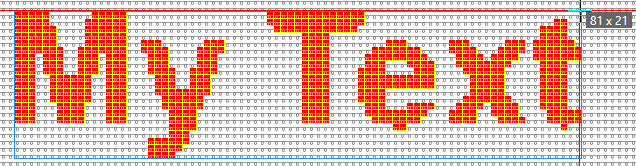
Enter a text in stripes with any aspect ratio:
- 1
- Enter Offset X and Y: for the horizontal stripes.
E.g. 0 and 1
- 2
- Specify the font family, the character style and the orientation.
E.g. Arial, Bold and Center
- 3
- Type the text into the edit box.
E.g. My Text
- 4
- Select the font color in the Pattern Colors tool window.
Yarn color red e.g.
- 5
- Leave
 Keep Aspect Ratio inactive.
With the frame (cursor echo) where the text appears, click into the pattern.
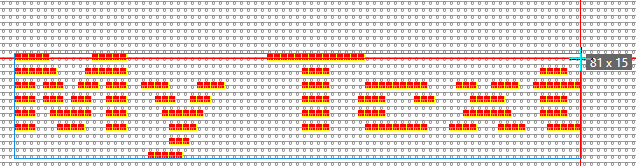
Enter the text with a fixed aspect ratio:
 Keep Aspect Ratio
- 1
- Keep Offset X and Y:.
Default 0 and 0
- 2
- Specify the font family, the character style and the orientation.
E.g. Arial, Bold and Center
- 3
- Type the text into the edit box.
E.g. My Text
- 4
- Select the font color in the Pattern Colors tool window.
Yarn color red e.g.
- 5
- Activate Keep Aspect Ratio.
- 6
- With the frame (cursor echo) where the text appears, click into the pattern.
- 7
- The text appears with the aspect ratio that is specified with the selected font type.