|
Attributes in the entire pattern
 Find and Replace Find and Replace
|
- Open the Find and Replace window.
- Switch off
 Selection. Selection. - Select the
 Pattern Colors under Find / Needle Data and the yarn color red under Value. Pattern Colors under Find / Needle Data and the yarn color red under Value.
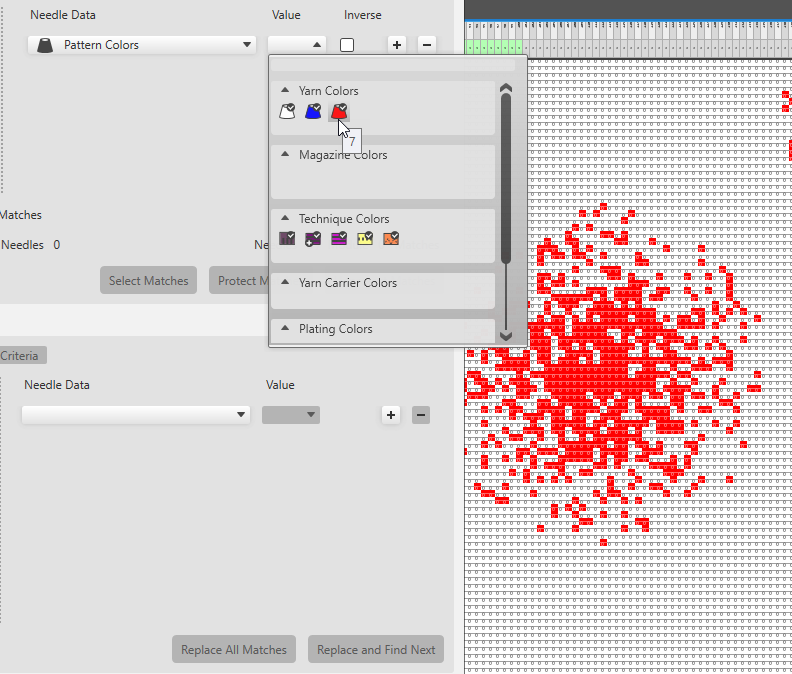
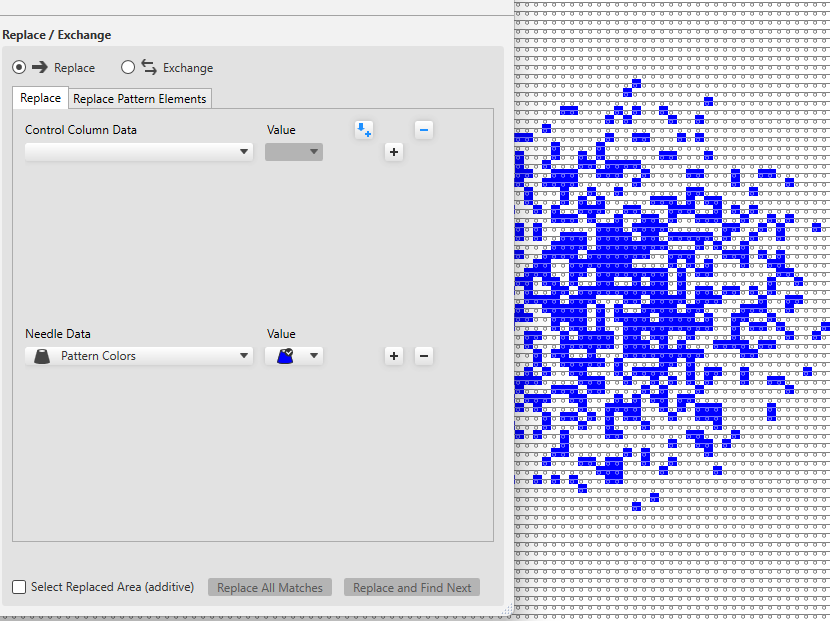
- Under Replace / Exchange / Needle Data, select the pattern colors and under Value, select the yarn color blue.
- Click on Replace All to replace all the stitches found with the pattern color red by the color blue.
Or click on Replace and Find Next to replace the found matches individually.
|
|
Structure modules in the selected area
Find and Replace.
|
- Open the Find and Replace window.
- Switch on
 Selection. Selection. - Under Find / Needle Data select the
 Structure Modules and under that select any module that is to be searched for. Structure Modules and under that select any module that is to be searched for. - Under Replace / Exchange / Needle Data select the structure module that is to be inserted.
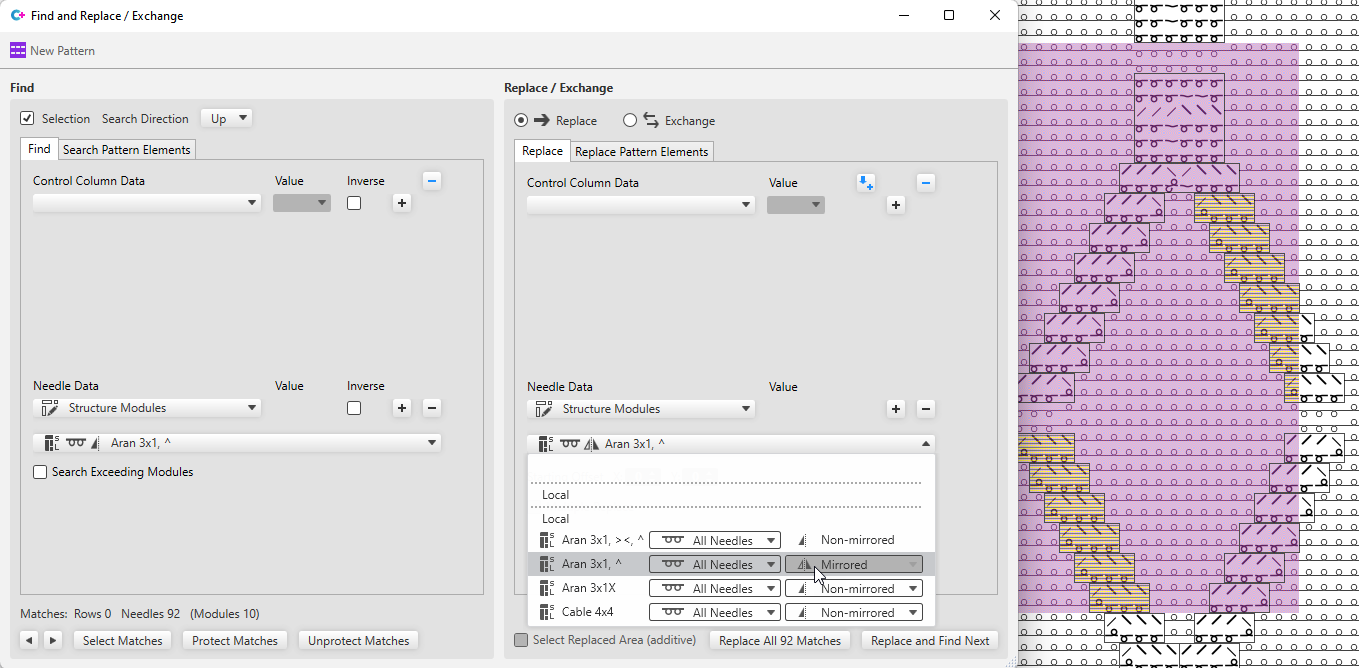
- Click on Replace All to replace all the modules found in the selected area.
Or click on Replace and Find Next to replace the found matches individually.
 All modules, even if they are only partially available in the selected area, are displayed as matches and replaced accordingly. All modules, even if they are only partially available in the selected area, are displayed as matches and replaced accordingly.
|
|
Control column data in the entire pattern
Find and Replace.
|
- Open the Find and Replace window.
- Switch off .
- Under Find / Control Column Data select the desired control column and the corresponding Value.
(e.g. Front Stitch Length, value: NP5) - Under Replace / Exchange / Control Column Data, select the control column and the Value that is to be entered.
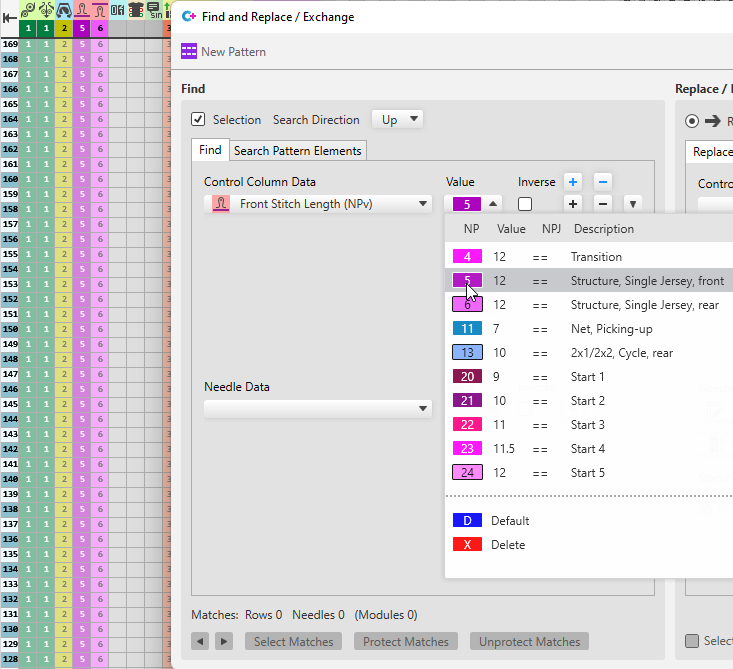
- Click on Replace All to replace all the NP values found.
Or click on Replace and Find Next to replace the found matches individually.
|
|
Search for, edit and replace a temporary pattern element in the entire pattern.
|
- Open the Find and Replace window.
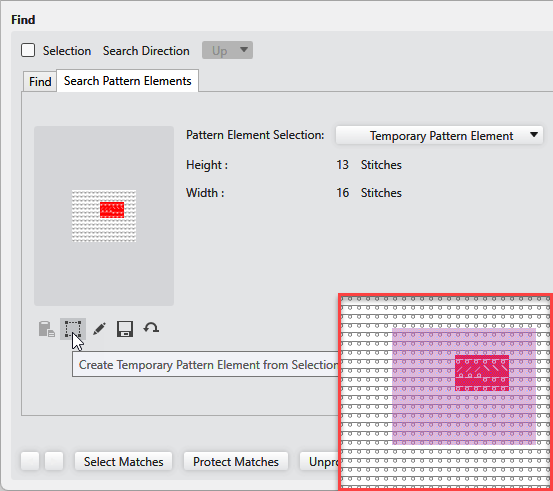
- Select the area in the pattern that you want to insert as a temporary pattern element in the search criteria.
- Click on
 Create Temporary Pattern Element from Selection under Find Pattern Elements. Create Temporary Pattern Element from Selection under Find Pattern Elements.
The area selected in the pattern appears as search criterion.
- Click on
 Add Search Criteria under Replace / Exchange / Replace Pattern Elements. Add Search Criteria under Replace / Exchange / Replace Pattern Elements.
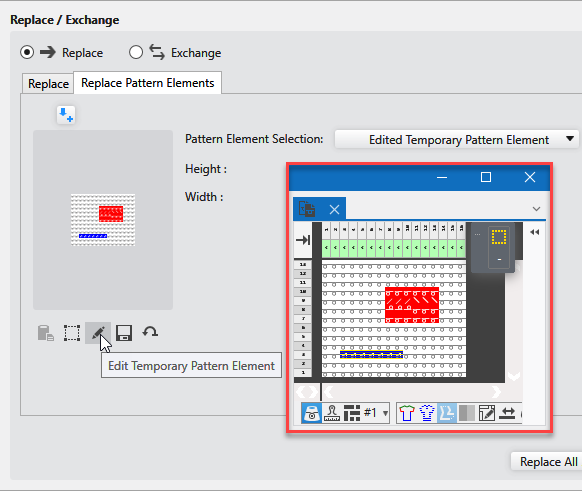
The temporary pattern element of the search criteria appears as criterion for insert. - Click on
 Edit Temporary Pattern Element. Edit Temporary Pattern Element.
The pattern element is opened. Make the desired changes and close it then.
The modified pattern element appears in the criteria for insert and under Pattern Element appears: Edited Temporary Pattern Element
- Click on Replace All to replace all the pattern elements found.
Or click on Replace and Find Next to replace the found matches individually.
|