Multi-step Widening
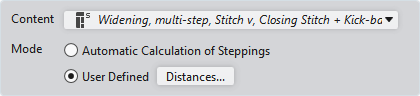
When selecting Multi-step Widening, the following dialog box appears:
|
Content |
Select module for Multi-step Widening.
|
|
Mode |
Select the calculation mode. |
|
|
Calculate the steps automatically based on the line properties. |
|
|
Open the Distances of the Line dialog box and make settings. |


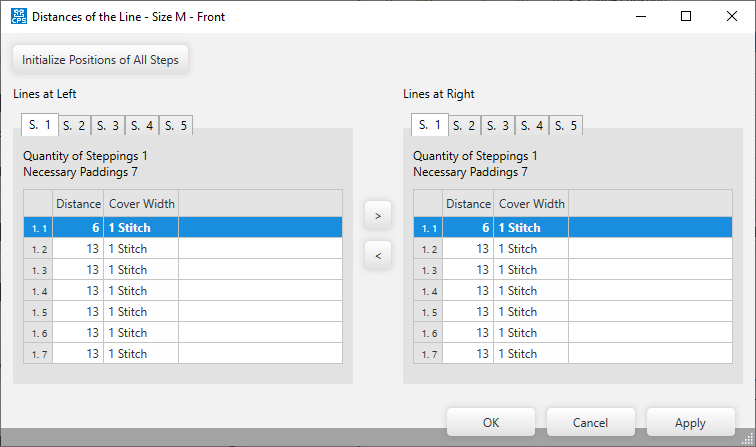
You make the following settings in the Distances of the Line dialog box:
|
Initialize Positions of All Steps |
Initializes the positions of the steps. |
|
Lines at Left |
Settings of the left lines for multi-step narrowing. |
|
Lines at Right |
Settings of the right lines for multi-step narrowing. |
|
S. 1 / S. 2 / S. 3 / S. 4 / S. 5 |
Select sub-line to View or Edit |
|
Quantity of Steppings |
Shows the quantity of steps of the selected sub-line. |
|
Necessary Paddings |
Shows the needed distances of the selected sub-line. |
|
First column |
Numbering of the entries. |
|
Distance |
Shows the distances between the markings. |
|
Cover Width |
Shows the cover width of each marking. |