Options of Start Modules
|
Check Automatically
|
Check the structure of the module automatically. The module is checked automatically for errors during the drawing. The menus and the error messages are displayed in the selected language.
|
|
|
Check the structure of the module manually. If Check Automatically |
|
Design Rows:: |
Apply control column data to the design row . If control column data is already defined for the technical rows, then they are applied to the design rows when activating If |
|
Design Rows:: |
Calculate the design symbols of the selected area automatically. |
|
|
Apply modifications to the module to the pattern. |
|
|
Hide and display the tool windows on the right side. |

 is switched off, then you have to click manually on Check for Errors.
 appears in the error message, then the position is additionally marked with a pin. Click on the eye
  appears in the error message, then no pin is displayed. Click on the crossed out eye


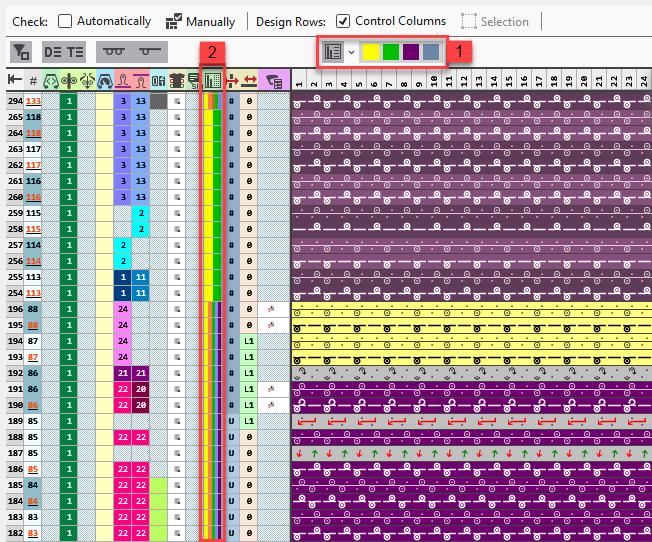
If you open a start module in the Knit Explorer, then an additional option appears in the header.
|
1 |
Filter of the row markings
In the selection menu of the icon you select the options for the filter criteria.
|
|
2 |
Control column In the control column it is easy to recognize which rows correspond to the respective filter criteria due to the colors. |
 Click on the icon to only display the selected filter criteria in the module.
  This way you can check the different options in the module better for a correct knitting sequence.