Context Menu of Pattern Elements
|
|
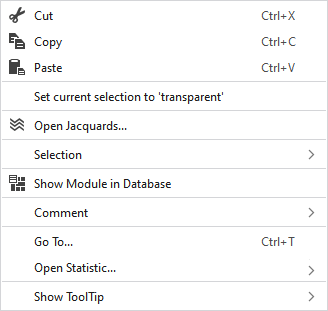
Deletes the content of the selection, copies it to the clipboard and takes it to the cursor (cursor attributes). | |
|
|
Copies the content of the selection to the clipboard and takes it to the cursor (cursor attributes). | |
|
|
Takes the content of the clipboard to the cursor (cursor attributes). | |
|
Set current selection to 'transparent' |
Sets the selected area in the pattern element to transparent. | |
|
|
Opens the Jacquard at the cursor position in the Jacquard table. | |
|
Selection |
Create Jacquard... |
Generate a Jacquard area in the selected area.
|
|
Select |
The functions of the menu bar Selection are also available in the context menu. | |
|
Protect |
A selection can be protected from interventions. | |
|
|
Shows the module at the cursor position in the Module Explorer. | |
|
Comment |
Place a pin, comment, or graphic anywhere in the pattern. | |
|
Go To... |
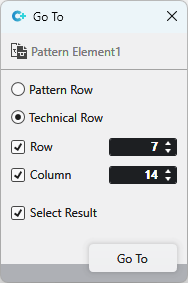
Opens the Go To dialog box.
| |
|
|
Entry in Row | |
|
|
Entry in Row | |
|
|
Enter the Row you want to jump to. | |
|
|
Enter the Column you want to jump to.
| |
|
|
The jumped to result is selected. | |
|
Show ToolTip |
|
Activates the tooltip in the needle area. |
|
|
Activates the tooltip in the needle area, as well as a preview of the modules. | |
|
|
Activates the tooltip in the control columns. | |
|
|
Activates the tooltip in the control columns as well as a preview of CA and MA. | |
|
|
The coordinates of the drawing are shown when drawing. | |



 refers to a
 With row and column enabled, the position with the corresponding coordinates is jumped to.
