Sintral (Ribbon Group)
Home tab -> Sintral group
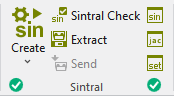
Run the following functions in the Sintral ribbon group:
|
|
Generate Knitting Program Creates the knitting program (sin, set, and jac) of the current pattern after the technical processing. Select the desired function in the expander of Create Sintral:
After successfully creating a knitting program, a green highlighted checkmark |
|
|
Sintral Check Check the knitting program (Sintral) for knitting ability and faultlessness. Controls the knitting ability and the faultlessness of the generated knitting program during call-up. No additional loading of the knitting program into the Sintral check is necessary. After successfully re-processing the knitting program, a green highlighted checkmark
|
|
|
Extract Saves the compressed knitting program (*.zip containing SIN, JAC, SET) for the knitting machine. If you have made changes in Sintral Jacquard or Setup, then they are also saved when extracting. |
|
|
Send Sends the knitting program (*zip) to the machine. Condition: |
|
|
Show Sintral Check and correct the knitting program (Sintral) of the current pattern. |
|
|
Show MC-Jacquard Check and correct the MC-Jacquard of the current pattern. |
|
|
Show MC Setup Check and correct the Setup data of the current pattern. Changes will not be applied to the basic. |


 If you want to load and check the knitting program of a different pattern, then call-up the Sintral check using the


- The icons are greyed out before creating the knitting program.
-
 Extract,
 -
 Sintral,
 -
 Jacquard
 -
 MC Setup.
 - The functions are available after creating the knitting program. In the bottom left of the group appears the
 OK icon.
 - If you edit these files after creating the knitting program, appears the
 Modified icon in the bottom left of the group.
 - If you edit the symbol view after creating the knitting program, appears the
 Outdated icon in the bottom left of the Sintral group.
 - You are also able to see the status of the processing steps in the Patterns tool window:
Pattern Item - If any errors occur when creating the knitting program, they are displayed in the message line inside the document window.
-
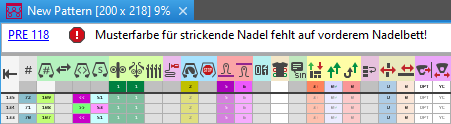
- Click on the error message in order to get more information about the error cause, its position in the pattern and a possible remedy.
Error Messages of Pre-processing or Technical Processing - The creation of the knitting program will be canceled with severe errors.
The error messages are marked with a red icon.
icon. - Warnings are marked with a yellow icon.
The creation of the knitting program is continued. - Processing Step: Generate Knitting Program
- Procedures: Sintral Check and Extracting