How to add an image
- The dimensioning view is opened.
- 1
- Call up the context menu Importar imagen in the background of the dimensioning view.
- The Open dialog box appears
- 2
- Select the Bitmap file (*.bmp, *.png, *.jpg) .
- 3
- Confirm with Open.
Examples for images
- Scans of a cardboard template
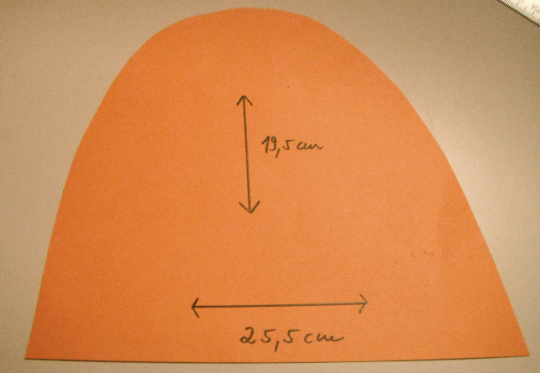
- Graphic as template for the shape geometry
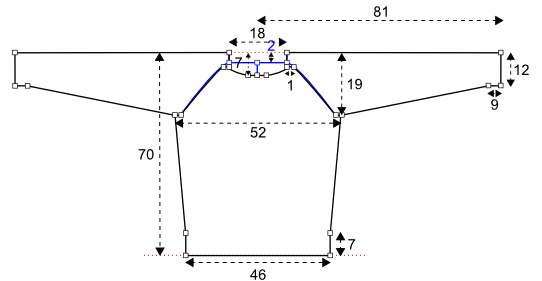
- Symbol view of the M1plus as draft for a new fabric piece
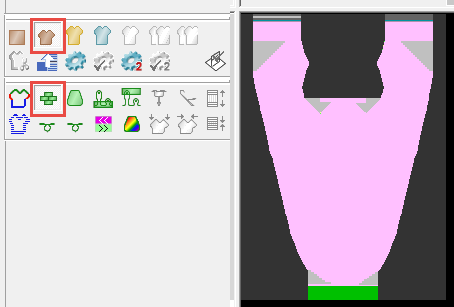
- Call up the Generar nueva pieza de tisaje a partir de la imagencontext menu in the background of the dimensioning view.
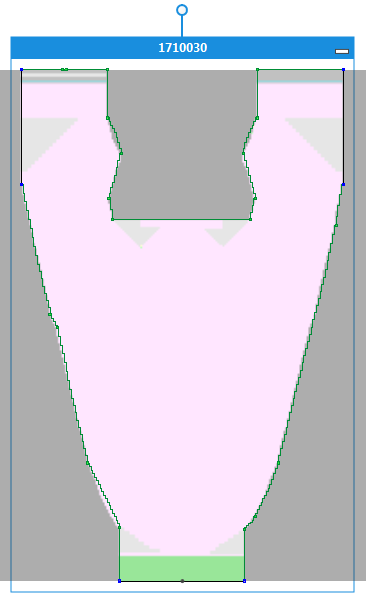
- Color areas of an imported image as a draft for a shape element
- Call up the Generar elemento de corte a partir de la superficie de color debajo del cursorcontext menu in the background of the dimensioning view.
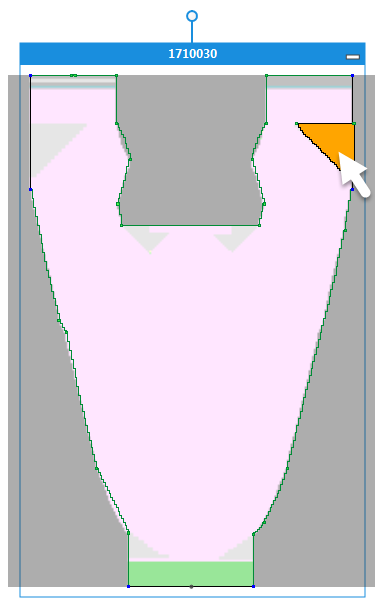
- Small color area with its surrounding in divergent colors of an imported image as a draft for a shape element
- Call up the Generar elemento de corte (tamaño mínimo 5x5) a partir de la superficie de color debajo del cursor y del color adyacentecontext menu in the background of the dimensioning view.