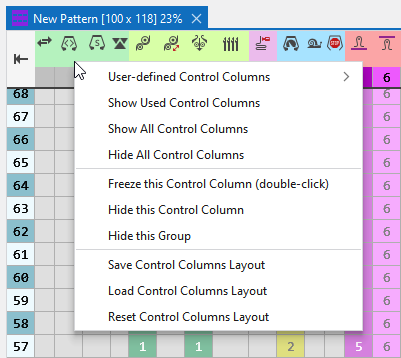
Context menu at the symbols of the header
Make the following settings via the context menu at the symbols of the header.
|
Colonnes de commande définies par l'utilisateur |
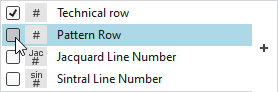
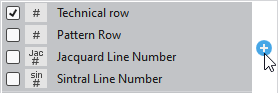
Select the control columns that are to be displayed. Select as many as desired control columns and close the context menu by ESC then. Select individual control columns:
Select a whole group:
|
|
Afficher les colonnes de commande utilisées |
Shows control columns in use by the pattern only. Hides control columns without entry. |
|
Afficher toutes les colonnes de commande |
Shows all control columns. |
|
Ne pas afficher de colonne de commande |
Hides all control columns. |
|
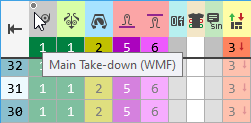
Fixer cette colonne de commande (double click) |
Freezes this control column. Works by double-click on the control column as well.
|
|
Masquer cette colonne de commande |
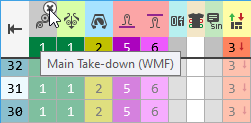
Hides this control column. If you move the cursor to the right corner of the control column header, then you can also hide the control column by clicking on the appearing symbol.
|
|
Masquer ce groupe |
Hides the entire control column group. |
|
Enregistrer la sélection de colonnes de commande |
Saves the current representation of the control columns. |
|
Charger la sélection de colonnes de commande |
Loads the saved representation of the control columns. |
|
Réinitialiser la sélection de colonnes de commande |
Resets the representation of the control columns to STOLL default. |