|
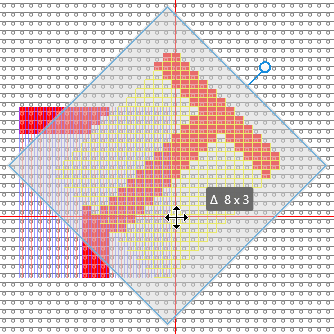
Rotate a selection with its content.
|
- Select the area to be rotated.
- Click on
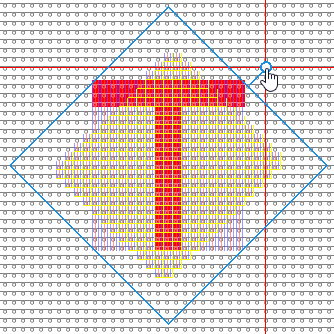
 Selezione con contenuto. Selezione con contenuto. - Above the selection appears a circle with a blue border.
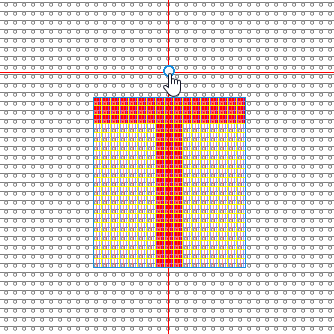
- Click into the circle and rotate the selection into the desired position.
-
Angolo (gradi)

Enter directly the angle of rotation.
- or -
Change the angle of rotation step by step. -
 Angolo fisso (multiplo di 45°) Angolo fisso (multiplo di 45°)
Select this setting if you want to rotate the selection many times by 45º.
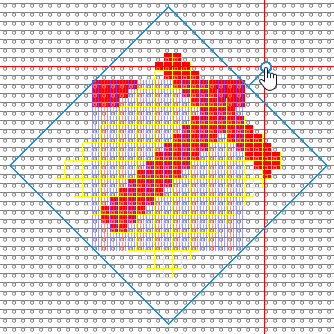
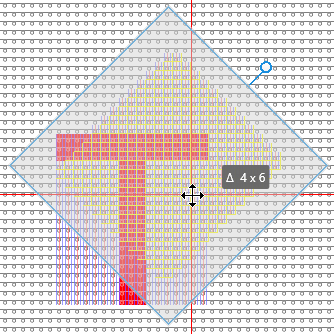
- Click into the selection to move it to the desired position.
In the tool tip you see the horizontal and vertical offset, by which it is moved.
 Discard the rotation by ESC key. Discard the rotation by ESC key.
Press the ENTER key to enter the rotated pattern element and to finish the procedure.
|