|
Insert a multiple copy of a module
|
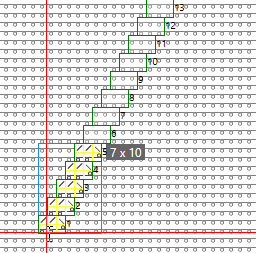
- Select the module (e.g. Aran 2x1).
- Set the quantity of Copie (e.g. 5).
- Set the Offset X (e.g. 1) and the Offset Y (e.g. 2).
- Click the module into the pattern.
- The multi copy appears.
|
|
Change a multi copy in the pattern
|
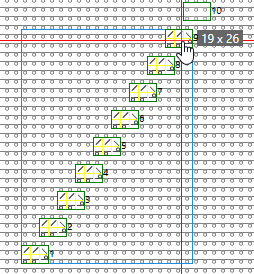
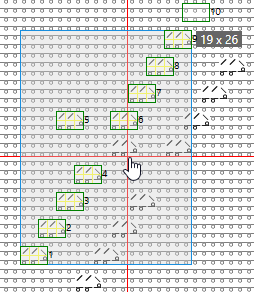
- You can change the number of copies and the offset in the pattern as well.
- Clicking on a numbered module copy will cause the quantity of copies to adapt exactly to this value.
- Clicking and dragging a module copy will change the offset values.
- Click
 Applica or hit the ENTER key in order to insert the module into the pattern. Applica or hit the ENTER key in order to insert the module into the pattern.
|
|
Applica e continua
|
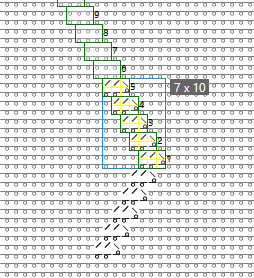
- After making the settings to a multiple copy, you can apply them also to the pattern also by Applica e continua.
- Then, at the end of the multiple copy, another repetition is available to you for editing.
|
|
 Sposta elementi manualmente Sposta elementi manualmente
|
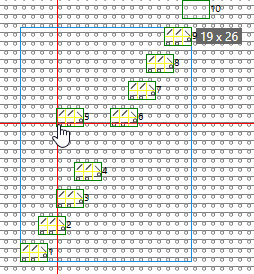
- Select Sposta elementi manualmente if you want to move individual modules of the copy.
- Click on the module and drag it to the desired new position.
- Click Applica or hit the ENTER key in order to insert the module into the pattern.
|
|
Resume copying the entire area
|
- After applying the module to the pattern, the frame of the modules will remain.
- You can move the frame with the modules and reposition it in the pattern.
- Click Applica or hit the ENTERkey in order to insert the module into the pattern again.
|
|
All'esterno della forma
A sinistra
|
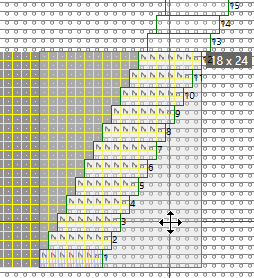
- Set the area at the left or right of the modules (e.g. A sinistra) with Multi-Copy to All'esterno della forma.
|