Import Image
I. Import Image:
- 1
- Start the program double-clicking
 .
. - 2
- Click
 Importar imagem in the start page under Start.
- or -
In the started CREATE PLUS, in the File ribbon, Importar tab, select Importar imagem. - The Image import dialog box appears.
- 3
- Select and open the path of the desired image via Abrir in the File ribbon of the Image Import dialog box.
 : The following formats can be read: bmp, jpg, jpeg, jpe, jfif, gif, tiff, tif, png
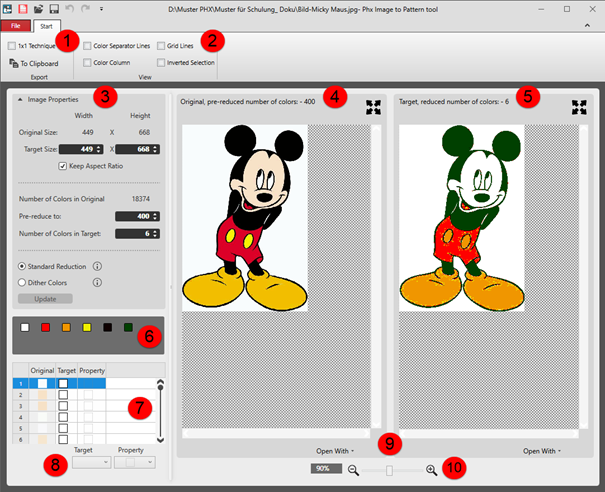
 - In the dialog box, the Original and the Target is displayed with a pre-set color reduction.
|
| |||||
|
Start ribbon | |||||
|
1 |
Ribbon Group Exportar | ||||
|
|
Técnica 1x1 |
The image will be doubled in the width (1x1 technique).
This affects the insertion of the image! | |||
|
|
Na área de transferência |
The edited image is copied to the clipboard.
| |||
|
|
Criar projecto de amostra |
Create a pattern project with a pattern based on the edited image. | |||
|
2 |
Ribbon Group Vista
| ||||
|
|
Linhas de separação de cores |
Display of the Destino, número de cores reduzido: view of colored separating lines for subdividing the different areas with different quantity of colors | |||
|
|
Linhas de grelha |
Display of a grid in the Destino, número de cores reduzido: view | |||
|
|
Coluna de cor |
Display of an additional column in the Destino, número de cores reduzido: view with the existing colors in each case. | |||
|
|
Seleção invertida |
Display of the selected color
| |||
|
3 |
Propriedades de imagem | ||||
|
Tamanho original: |
Display of the original size of the image in width x height | ||||
|
Tamanho de destino: |
Edit boxes for the size of the target in width x height | ||||
|
|
Manter a proporção |
|
Size of the image freely changeable in width and height. | ||
|
|
Size of the image changeable depending on the aspect ratio. | ||||
|
Número de cores no original |
Original quantity of colors in the original image | ||||
|
Reduzir previamente a: |
Entry of the quantity of colors to which the image is to be reduced when loading it.
| ||||
|
Número de cores no destino: |
Entry of the quantity of colors for reducing the Original to Destino | ||||
|
|
Type of reduction of an image, e.g. for Jacquard | ||||
|
|
Type of reduction of an image with smooth color transitions, e.g. for photos | ||||
|
Atualizar |
Apply changes of the settings | ||||
|
4 |
Display of the original image with already previously reduced colors | ||||
|
5 |
Display of the Destino image with the specified quantity of colors | ||||
|
6 |
| ||||
|
7 |
Table with the following columns | ||||
|
Original |
Quantity of colors which were entered at Reduzir previamente a:. | ||||
|
Destino |
Allocation of a target color to a original color
| ||||
|
Propriedade |
|
Allocate 'outside shape' to one or more selected target colors.
| |||
|
|
One or more selected target colors are imported as color in the CPS.
| ||||
|
|
Allocate Transparente to one or more selected target colors.
| ||||
|
8 |
Destino |
Selection of the target color for the allocation of a property | |||
|
Propriedade |
Selection of the desired property for the selected target color | ||||
|
9 |
Abrir com |
Open the original or the target in an image editing app to make changes | |||
|
10 |
Zoom |
Zoom in or out | |||