Cursor attributes for the pattern layer
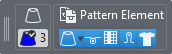
The currently selected attributes are displayed in the Cursor Attributes window.
|
|
Button to Move Click on this button and drag the Cursor Attributes window with a pressed mouse button to any desired position inside of the document window. |
|
|
Deselect Attribute If you move the mouse over the attributes the following signs appear at the upper margin: Click on |
|
|
Display of the selected pattern color Example: Yarn Color3 |
|
|
Display of the selected structure Shows the current selection of the needle action, of the knitting element or symbol for knitting elements. If you edit the control columns, then the corresponding selection is displayed. In the example a |
|
|
Apply Properties If you select a structure module or pattern element, you can define the properties that should be applied from the pattern element. For this, click on the offered options.
If you select a pattern element, you can change its colors before you draw with the pattern element.
|


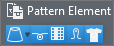
 pattern element is selected.

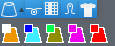


 If you replace a color of the pattern element with
 If you have selected cursor attributes and want to create a selection without losing the cursor attributes, press the ^ key and keep it pressed.
The cursor attributes disappear as long as you keep the key pressed.
This way you can create a selection, and as soon as you release the ^ key, the cursor attributes appear again.
When you press the ESC button, the Cursor Attributes disappear and they can be displayed again with the ^ button.