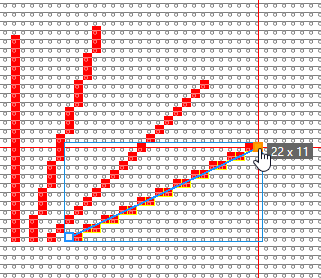
|
Draw with or without attributes
|
- If you selected cursor attributes, they will be applied to the pattern when drawing.
- If you did not select any cursor attributes, the area will be selected.
The selected area is available for further editing.
|
|
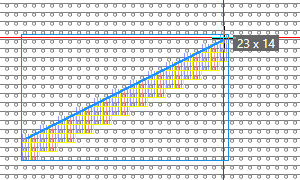
Draw a free line
|
- Enter a Espessura da linha value (e.g. 3).
- Select the Alinhamento (e.g. right).
- Set the Espaço to 0 (zero).
- Select the
 livre option. livre option. - Draw the Linha (e.g. without attributes).
The measurements of the line (horizontal and vertical length) appear in the tooltip.
|
|
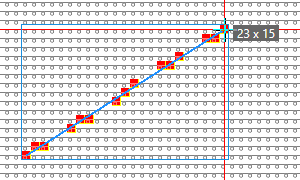
Draw a dash line
|
- Set the Espessura da linha value(e.g. 1).
- Set the value for Stroke (e.g. 3) and Espaço (e.g. 2).
- Draw a Linha. (with yarn color red e.g.)
The measurements of the line (horizontal and vertical length) appear in the tooltip.
|
|
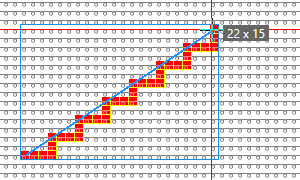
Draw a line with user defined stepping
|
- Set the Espessura da linha value(e.g. 1).
- Set the Espaço to 0 (zero).
- Select the Personalizado option.
- Select the Largura: (e.g. fix = 3) and the Altura: of the stepping (e.g. fix = 2).
- Draw a Linha with the specified stepping. (with yarn color red e.g.)
The measurements of the line (horizontal and vertical length) appear in the tooltip.
|