Settings in the Header Row
The header of the control columns has two rows:
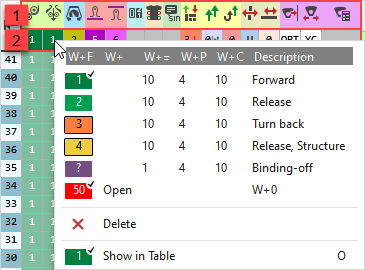
|
1 |
Icons to identify the control columns The tooltip on the icon shows the name of the control column. |
|
2 |
Default settings These settings take effect on all rows of the control column that are set on Select the entry from the context menu. |


In the control columns you have the following three alternatives in every case using the context menu:
|
Different Entries |
Draw one of the offered entries into the control columns. The entry has an effect in the corresponding row. |
|
|
Draw Default in the control column.
|
|
|
Draw Eliminar in the control column.
|
 Values that are entered to the control column using the default, are shown as transparent.
|
|
Directly entered |
|
|
Entry using the Default |


If there is no default setting in the header row, then Default and Delete are represented as follows in the control column:
|
|
|
|
|
|

 While drawing appears in the control column:

