Lined Shape Layer
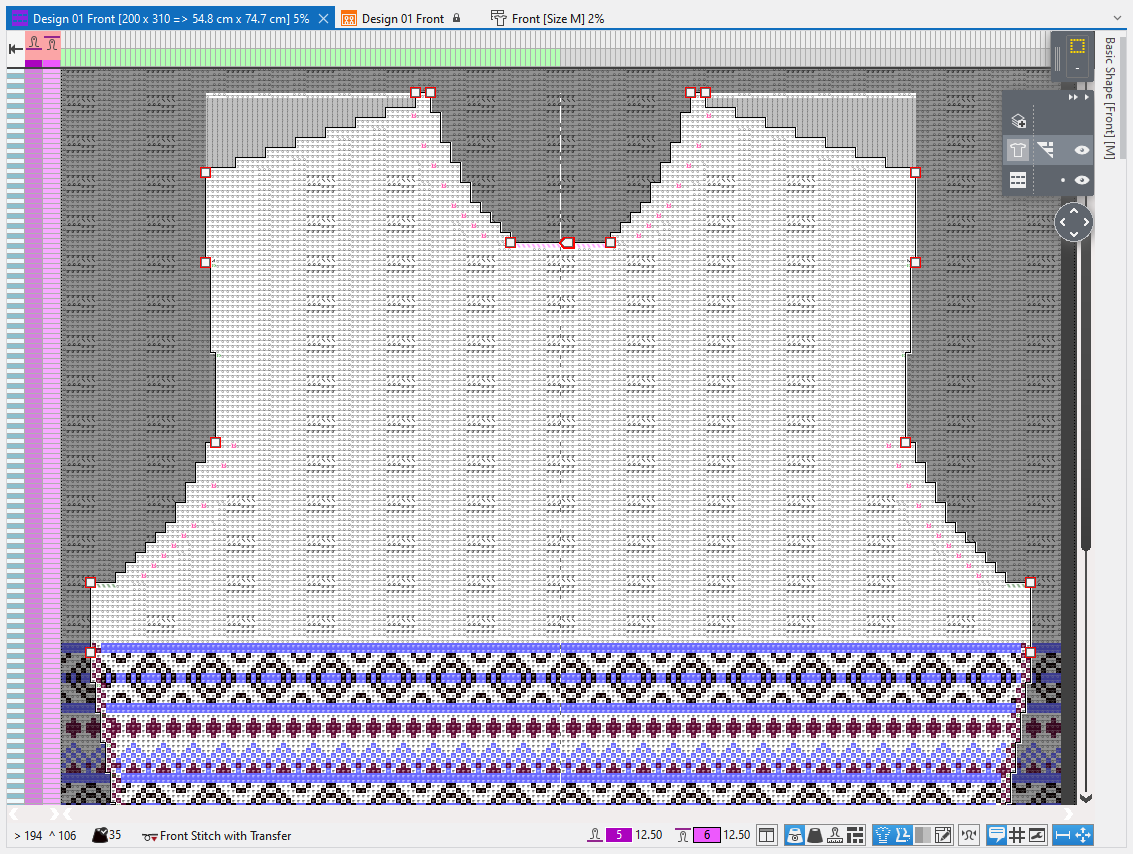
In the lined shape layer you edit the positioned shape. The changes are directly applied in the lined shape.
In the menu bar appears the Shape Editing tab.
Using the different tool windows and tables you are able to edit lines, markings, and shape elements.
But you are also able to click on, move, and edit these directly on the shape.
Move shape points or shape elements
You can move marking points, as well as start and endpoints of the lines or shape elements.
Click on the shape point or the shape element. Distort the selected element with pressed mouse button or use the arrow keys of the keyboard for it.
Insert and delete shape points
On a line you can insert and move new shape points using the context menu.
Click on a shape point to delete it using the context menu.
Line Table
Each lined shape has its own Tabela de linhas docked to the document window.
The Tabela de linhas is pinned to the top, at the right edge of the document window by default.
The table can be dragged to any desired edge.
- Line Table
Context Menus
Using different context menus you have access to other settings and functions for the shape:
- Context Menu on a Marking Point
- Context Menu of a Shape Line
- Context Menu of the Lined Shape
- Context menu of a Shape Element
- Context menu in the header
Status Bar
In the status bar of the lined shape layer you can make the following settings for the representation of the shape: