How to Adjust the Shape Type


- The dimensioned shape is open.
- 1
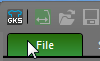
- Select the ribbon on the top left.
- 2
- Call up the menu.
- Configuration
- 3
- Select the button of the current shape type on the top left.
Example: Set-in Sleeve - The Change Dimensioned Shape dialog box appears.
Change a Dimensioned Shape (dialog box) - 4
- Select the basic shape type in the left detail column.
Example: Raglan - The possible settings for the selected shape type appear in the middle detail column.
- 5
- Select specific settings.
- Shoulder Variants
- Neckline Variants
- Seam Position of Collar
- Armhole Shapes
- Waist Variants
- Sleeve Length Dimensionings
- Armhole Dimensionings
- Straps
- 6
- Enter the determined value in the edit box for the Width under Stitch Density [10 cm]
 in the Pattern group box of the right detail column.
 - 7
- Enter the determined value in the edit box for the Height .
- 8
- Select the desired needle action in the Filling Element
 list box.
 - 9
- Enter the determined value in the edit box for the Width under Stitch Density [10 cm] in the Waistband of Body group box.
- 10
- Enter the determined value in the edit box for the Height .
This value can differ from the stitch density of the basic pattern.
- 11
- Activate the
 Knitting Element for the Start check box.
 - The options for the waistband of the body appear.
- 12
- Select the start module for the body in the list box.
- 13
- Select the settings for the waistband of the body:
- Quantity of Systems
- Elastic Thread
- Protection Yarn
- Transition
- Doubling
- 14
- Enter the determined value in the edit box for the Width under Stitch Density [10 cm] in the Cuff of Sleeve group box.
- 15
- Enter the determined value in the edit box for the Height .
- 16
- Activate the Knitting Element for the Start check box.
- The options for the cuff of the sleeve appear.
- 17
- Select the start module for the sleeve in the list box.
- 18
- Select the settings for the cuff of the sleeve:
- Quantity of Systems
- Elastic Thread
- Protection Yarn
- Transition
- Doubling
- 19
- Click on the OK button.
- All shapes and dimensionings will be deleted.
- The selected shape type appears.