How to Create Individual Sizes of a Stencil
Grading a size by percent:
- The order requires the M size additionally to the XS size.
- The size difference is specified by a percentage.
- The M starting size is completed.
- The Dimensions
 tool window is open.
- 1
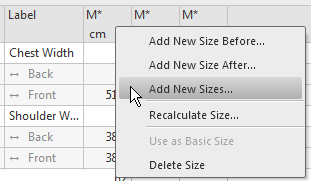
- Open the context menu in the M column title of the Dimensions table.
- 2
- Select
- The Add New Size dialog box appears.
- 3
- Overwrite the indicated S size with XS in the Designation
 edit box.
 - 4
- Describe the size in the Description edit box.
- 5
- Activate the
 Grading check box.
 - 6
- Select the M* option in the Starting Size
 list box.
 - 7
- Keep the
 Reduce button active.
 - 8
- Select the
 Factor option button in the Resizing group box.
 - 9
- For the gradings enter the percentage via the
 % edit box.
 - 10
- Confirm with
 .
. - An additional column for the XS size appears in the measure table with the
 display option activated.
With the activated icon the correction value columns appear additionally for the size XS.
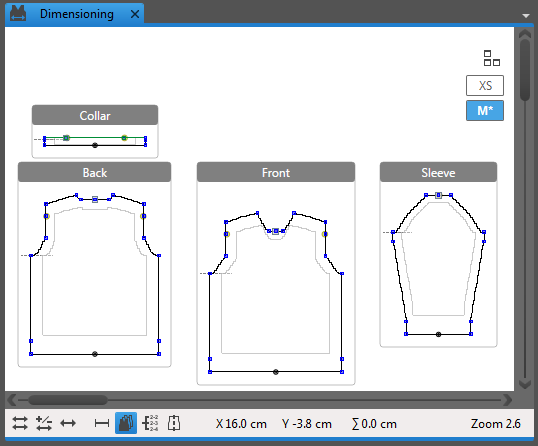
- With the status icon activated both sizes appear in the dimensioning view.
Grading the size absolutely:
- The order requires the M size additionally to the XS size.
- Grading steps areas specified by difference values per dimension.
 within the measure table shows the column of the absolute values.
 - The M starting size is completed.
- The Dimensions tool window is open.
- 1
- Enter a absolute difference for each dimensioning in the Dif column of the Dimension table.
- 2
- Open the context menu in the M column title of the Dimensions table.
- 3
- Select
- The Add New Size dialog box appears.
- 4
- Overwrite the indicated S size with XS in the Designation edit box.
- 5
- Describe the size in the Description edit box.
- 6
- Activate the Grading check box.
- 7
- Select the M* option in the Starting Size list box.
- 8
- Keep the Reduce button active.
- 9
- In the Resizing group box select the Absolutely (difference from the table) option button.
- 10
- Confirm with .
- An additional column for the XS size appears in the measure table with the display option activated.
With the activated icon the correction value columns appear additionally for the size XS. - With the status icon activated also the XS size appears in the dimensioning view.
After grading check and correct each size according to the order.