Creating the shape as lined shape in the pattern project
Open the  Kesimler tool window:
- 1
- In the Başlat ribbon under
 Araç penceresi, select the Kesimler tool window.
 - In the tool window, the existing shapes of the pattern project are displayed.
- 2
- Place the cursor in the tool window and open the context menu.
- 3
- Select M boyutunda yeni kesim oluştur... in the context menu.
- The Yeni çizgi kesimi dialog box will appear.
- 4
- Select the desired input format.
- 5
- Confirm with the OK key.
- The new lined shape (basic shape) is graphically displayed in the Kesimler tool window and in a new document window
 as rectangle.
 : The default attributes will be used for the shape edges of the lined shape.
 - 6
- For creating a lined shape based on the displayed rectangle click the Özellikler button in the ribbon under Çizgi tablosu.
- or -
Use the graphic displayed in the document window. - 7
- Create the desired shape lines with narrowing stepping of 3 needles.
- 8
- Allocate the desired shape line attributes to the shape line.
 : You may use the method you prefer as both views are always adjusted to each other.
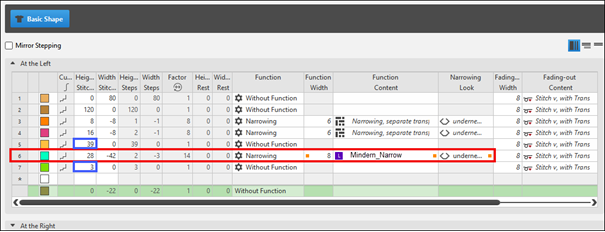
Basic Shape: Back on the left
Basic Shape: Back on the right
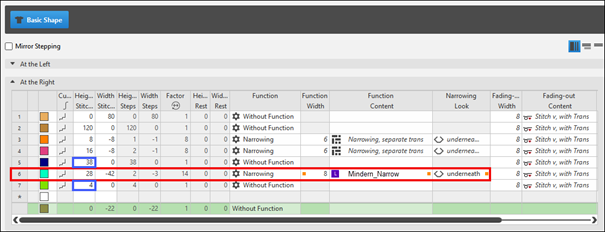
To be observed when generating the shape:
- The narrowings should be offset left and right in the height:
- Narrowing on the right on even row number (marked in red)
- Narrowing on the left on odd row number (marked in blue)
- The total height of the shape must have an even number of rows.
- The narrowings left / right depend on the direction.
- Shape and narrowing modules must be matched to each other.
- 9
- Allocate the generated narrowing module to shape lines no. 6 of the left and right shape part.