Sintral (Ribbon Group)
Başlat tab -> Sintral group
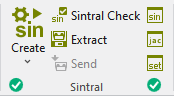
Run the following functions in the Sintral ribbon group:
|
|
Örme programı oluştur Etkin desenin örme programını (SIN; JAC; SET) teknik işleme göre oluşturur. Select the desired function in the expander of Create Sintral:
After successfully creating a knitting program, a green highlighted checkmark |
|
|
Sintral Kontrolü Örme programının (Sintral) örülebilirliği ve hatasızlığı kontrol edilir. Controls the knitting ability and the faultlessness of the generated knitting program during call-up. No additional loading of the knitting program into the Sintral check is necessary. After successfully re-processing the knitting program, a green highlighted checkmark
|
|
|
Genişlet Sıkıştırılmış örme programı (*.zip) örme makinesi için (SIN, JAC, SET ile) kaydedilir. If you have made changes in Sintral Jacquard or Setup, then they are also saved when extracting. |
|
|
Gönder Örme programını (*.zip) makineye gönderir. Condition: |
|
|
Sintral'i göster Etkin desenin örme programı (Sintral) kontrol edilir ve düzeltilir. |
|
|
MC jakarını göster Etkin desenin MC jakarını kontrol edin ve düzeltin. |
|
|
MC-Setup'ı göster Etkin bölgenin Setup verileri kontrol edilir ve düzeltilir. Değişiklikler temele uygulanmayacaktır. |


 If you want to load and check the knitting program of a different pattern, then call-up the Sintral check using the


- The icons are greyed out before creating the knitting program.
-
 Genişlet,
 -
 Sintral,
 -
 Jakar
Jakar -
 MC-Setup
.
MC-Setup
. - The functions are available after creating the knitting program. In the bottom left of the group appears the
 Tamam icon.
 - If you edit these files after creating the knitting program, appears the
 Değiştirildi icon in the bottom left of the group.
 - If you edit the symbol view after creating the knitting program, appears the
 Outdated icon in the bottom left of the Sintral group.
 - You are also able to see the status of the processing steps in the Desen tool window:
Pattern Item - If any errors occur when creating the knitting program, they are displayed in the message line inside the document window.
-
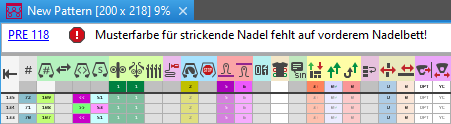
- Click on the error message in order to get more information about the error cause, its position in the pattern and a possible remedy.
Error Messages of Pre-processing or Technical Processing - The creation of the knitting program will be canceled with severe errors.
The error messages are marked with a red icon.
icon. - Warnings are marked with a yellow icon.
The creation of the knitting program is continued. - Processing Step: Generate Knitting Program
- Procedures: Sintral Check and Extracting