Create New Knitting Elements
Options for saving a knitting element:
- In the
 编织资源管理器
 : Knitting element available for all projects
 - In the
 花型项目: Local knitting element related to the project
 - The knitting element can be saved.
-
文件 -> 另存为
: The knitting element is saved in any directory on the PC as xx.smf file.
I. Create new knitting element:
- 1
- Click on the
 新编织元素 icon at the start of CREATE PLUS.
- or -
Click 新编织元素 icon in the 编织资源管理器.
- or -
Select 创建新模块... in the context menu of the 模块 tab.
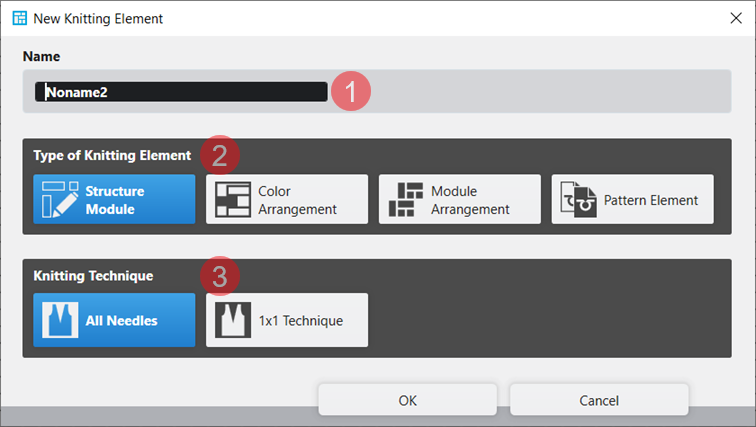
 - The 新编织元素 dialog box will appear.
|
| ||
|
1 |
名称 |
Enter the name of the new knitting element. |
|
2 |
编织元素类型 |
Selection of the template for the new knitting element
|
|
3 |
编织工艺 |
Selection of the basic knitting mode for the new knitting element
|
- 2
- Make the desired settings.
- 3
- Close the dialog box with the 确定 button.
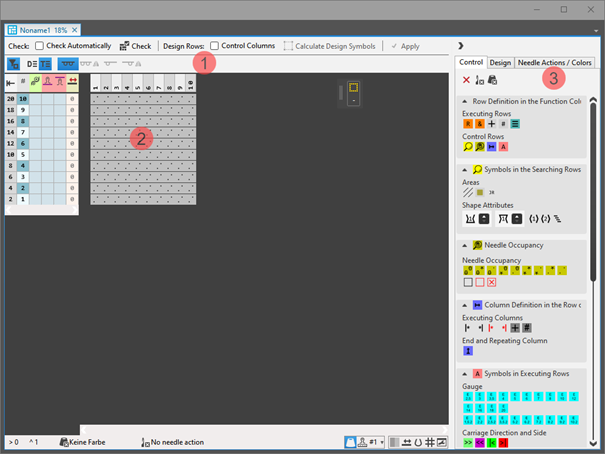
- The tool window appears with the corresponding template.
|
| ||||
|
1 |
Check |
|
自动 |
The created knitting element are not automatically checked regarding the correct structure. |
|
|
自动 |
An automatic check is executed regarding the correct structure of the created knitting element. | ||
|
|
检验 |
Checking of the created knitting element regarding the correct structure. | ||
|
Design Rows |
|
控制列 |
Not applying the control column data from the technical rows to the design rows | |
|
|
控制列 |
Applying the control column data from the technical rows to the design rows | ||
|
| ||||
|
|
选择 |
Get the design symbols for the technical rows in the selected area created. | ||
|
|
| |||
|
|
| |||
|
|
| |||
|
Presentation of symbols: |
| |||
|
|
|
Display of the drawing canvas for knitting with all needles. | ||
|
|
Display of the drawing canvas for knitting with all needles mirrored.
| |||
|
|
Display of the drawing canvas for knitting in 1x1 technique.
| |||
|
|
Display of the drawing canvas for knitting in 1x1 technique mirrored.
| |||
|
2 |
Display of the corresponding template with control columns and drawing canvas | |||
|
3 |
控制 |
Tab with all attributes for creating the different knitting element types | ||
|
设计 |
Tab with icons for changing / creating design rows | |||
|
织针动作 / 颜色 |
Tab with needle actions and the pattern colors | |||


- 4
- Select the 织针动作 / 颜色 tab.
- 5
- Select the display of
 工艺行.
工艺行. - 6
- Draw the structure of the new knitting element with needle actions and the desired pattern color into the technical rows.
- The design rows are generated automatically.
- 7
- Define the control column data in the technical rows.
- 8
- If desired, apply the control column data to the design rows with the
 控制列 button activated.
 - 9
- Check the knitting element regarding the correct structure with the
 检验 button.
 - 10
- Save the knitting element.
II. Create a new, local knitting element:
- A project is created and opened.
- 1
- Select the
 编织元素 tab in the 编织元素 tool window.
 - 2
- Call-up the 创建新模块... context menu of the tool window.
- The 新编织元素 dialog box appears.
- 3
- Select the desired template.
- 4
- Select the knitting technique for the selected template.
- 5
- Confirm entries with 确定.
- Tool window appears.
- 6
- Create and check the knitting element.
- 7
- Close the tool window with X.
- A new local knitting element is saved in the 编织元素 tab.