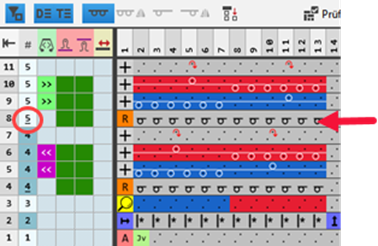
Example: Knitting Element for Jacquard float with Transfer or Cast-off
Creating a knitting element for Jacquard float with Transfer or Cast-off:
- 1
- Open
 编织资源管理器.
 - 2
- Under 编织元素记录 / / select the desired STOLL knitting element Jacquard, which is appropriate as template for the Jacquard knitting element that is to be created.
- 3
- Open the context menu with RMB and select
 复制.
复制. - A copy is created.
 : If a write-protected STOLL knitting element is opened and changed, you will be asked whether you want to save the changes when closing the knitting element. Saving the changes results automatically in a copy.
- 4
- Save the copy to the desired directory by
 粘贴.
粘贴. - 5
- Open the copy by double click.
- 6
- If necessary, remove all the tiles that are not needed.
 刪行
刪行 删除列
删除列 - At least one tile must be kept.
- 7
- Delete all STOLL standards from the processing area.
- A tile with the entries in the function column and the end column of the search area is retained.
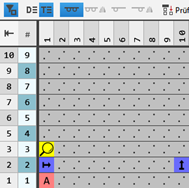
- 8
- Then insert or duplicate the desired quantity of rows (cycle in height) and columns (cycle in width).
- 9
- Select the 控制 tab.
- 10
- In the search area, make the following entries with symbols from the 控制tab.
- In the
 attributes row:
 - 图案正面 (Jv)
- 图案背面 (J^)
- In the
 repeating row:
 -
从左侧花型列开始重复

-
从右侧花型列开始重复

- In the
 searching row:
Mark the cycle widths with the desired color from the 定义颜色 table ( to
to  )
)
- 11
- Draw-in the desired knitting sequence in the 工艺行
 of processing area.
With symbols of the 控制 and 织针动作 / 颜色 tab. - 12
- Enter the 执行行,插入模式
 symbol into the function column of the processing area.
 - 13
- Group the technical rows belonging together to one pattern row.
- Two pattern rows of this example are knit by a cycle.
- 14
- Enter the desired control column data in the corresponding control column of the corresponding technical rows.
- Stitch Length
- Carriage Direction
- Fabric Take-down
- Carriage Speed
- etc.
- 15
- Check the formal correctness of the knitting element with the
 检验 button.
: The knitting process itself will not be checked.
- 16
- Close the Knitting Element editor.
- 17
- Save the knitting element.
Result without display of the design rows:
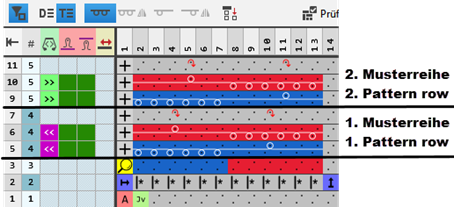
: Instead of 后板脱圈  you can use 向前翻针
  as well.
II. Add an additional design row:
If the knitting sequence in the knitting element consists of several pattern rows, defining additional design rows is necessary.
- A new 提花模块 knitting element is created.
- The knitting element is opened in the view.
- 1
- Activate the display of the design rows with the
 显示设计行 button.
: When creating a knitting element, a design row is automatically generated out of the first knitting technical row. It is displayed underlining the pattern row number, e.g.  .
.
- 1
- Select the first knitting row of the second pattern row.
- 2
- Open the context menu with RMB.
- 3
- Select 下方插入空行 in the menu.
- An empty pattern rows is added to the processing area.
- 4
- Enter the
 symbol into the function column.
 - 5
- Copy the symbol of automatically generated reference row below the knitting row and enter it.
- or -
Open the 设计 tab, select the desired symbol and enter it. - 6
- Check the Control Column Data.
- 7
- Position the cursor in the control column
 on to the newly added row.
 - 8
- Open the context menu with RMB and select 设置“设计行”类型.
- 9
- Insert it into the selection of the new pattern row by the LMB.
- The added pattern row will be marked as design row
 .
.
Result with display of the design rows