Creating the shape as lined shape in the pattern project
Open the  模型 tool window:
- 1
- In the 起头 ribbon under
 工具窗口, select the 模型 tool window.
 - In the tool window, the existing shapes of the pattern project are displayed.
- 2
- Place the cursor in the tool window and open the context menu.
- 3
- Select 创建 M 码新模型... in the context menu.
- The 新线模型 dialog box will appear.
- 4
- Select the desired input format.
- 5
- Confirm with the OK key.
- The new lined shape (basic shape) is graphically displayed in the 模型 tool window and in a new document window
 as rectangle.
 : The default attributes will be used for the shape edges of the lined shape.
 - 6
- For creating a lined shape based on the displayed rectangle click the 属性 button in the ribbon under 线表.
- or -
Use the graphic displayed in the document window. - 7
- Create the desired shape lines.
- or –
Import the existing shape into the pattern project. - 8
- Allocate the desired shape line attributes to the shape line.
: You may use the method you prefer as both views are always adjusted to each other.
|
Basic Shape: Front |
|
|

|
Shape Element Type: Neckline symmetric |
|
|
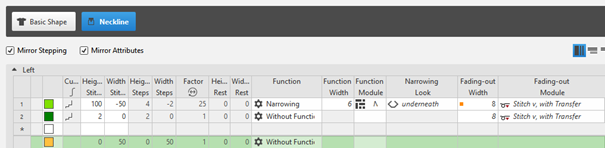
Create the 褶 type of shape element for the left and right hand side.
- In the Line Table
- Position the cursor to the display pane of the line table.
Call-up the 添加新模型元素 -> 褶 -> 不对称 context menu.
 - In the document window
- Place the cursor within the basic shape.
Call-up the 添加新模型元素 -> 褶 -> 不对称 context menu.
:
The 褶 shape element contains aligning  or
or  .
.
| 向右排列 | Symbol is used in the shape element dart on the left side of the basic shape. |
| 向左排列 | Symbol is used in the shape element dart on the right side of the basic shape. |
- 1
- Open the lines of the created shape element in 线表 in order to define presets of the line.
- or -
Open the line by double click on the desired shape line. - 2
- Enter the values for the dart at the left:
- Step width for narrowing or widening: 1 needle
- Width of narrowing or widening: 1
- 3
- Allocate shape lines and attributes.
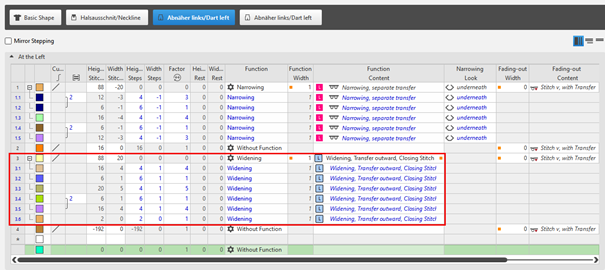
- Shape line for narrowing:
- e.g. Narrowing, separate transfer
- Shape line for widening
- Widening, Transferring outward, Standard
- Widening, Transfer outward, Closing Stitch
: The first created 褶 shape element is linked to the left side of the basic shape leading to the line table At the Left.
Dart type of shape element for the left side of the basic shape |
|
- 4
- Call-up the 复制 context menu of the shape element.
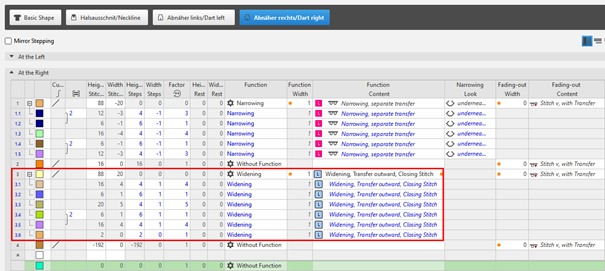
: The doublicated shape element is linked to the right side of the basic shape leading to the line table At the Right.
褶 type of shape element for the right side of the basic shape |
|
Link and position the 褶 shape elements:
- A basic shape is created with the shape elements for the left and right 褶.
- 1
- Select the right 褶 shape element
- The line with the anchor appears.
- 2
- Take the desired anchor at the cursor by LMB.
- 3
- Move the cursor to another shape line point with the LMB pressed.
- 4
- Release the left mouse button.
- The shape element is linked to this shape line point.
- 5
- Open the input window by double-click on the selected shape element.
- or -
Open the input window by double-click on the coordinate display. - 6
- Change the coordinates of 距离 X: and / or 距离 Y: if necessary.
- The shape element is correctly linked and is at the correct position.
- 7
- Continue with the second 褶 shape element.