Usage of Polyline

Draw with or without attributes

  • If you selected cursor attributes, they will be applied to the pattern when drawing.
  • If you did not select any cursor attributes, the area will be selected.
    The selected area is available for further editing.

Edit options while drawing

  • You can edit the options while drawing.

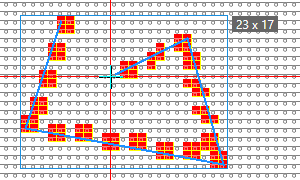
Draw an outlined closed polyline with user defined line

  • Select 折线 .
    闭合和未填充
  • Enter a 线宽 value (e.g. 1).
  • Set the 间隙 to 0 (zero).
  • Select the 用户自定义 option.
  • Set the value for 宽度: (e.g. 固定 = 3) and 高度: (e.g. 固定 = 2).
  • Draw the 折线 (with yarn color red e.g.)
    Width x height of the entire polyline appears in the tooltip.

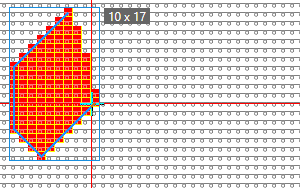
Draw a filled closed polyline with 45º and step angle
Edit the options while drawing

  • Select 折线 .
    闭合和填充
  • Enter a 线宽 value (e.g. 1).
  • Set the 间隙 to 0 (zero).
  • Select the 45° option.
  • Draw drawing.

  • Switch to the 收放针步骤角度 option.
  • Draw the rest of the 折线 (with yarn color red e.g.).
    Width x height of the entire polyline appears in the tooltip.

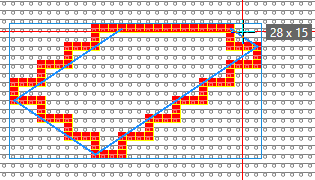
Draw an open polyline

  • Select 折线 .
    开放和未填充
  • Enter a 线宽 value (e.g. 2).
  • Set the value for 动程 (e.g. 2) and 间隙 (e.g. 1).
  • Select the 自由 option.
  • Draw the 折线 (with yarn color red e.g.)
    Width x height of the entire polyline appears in the tooltip.

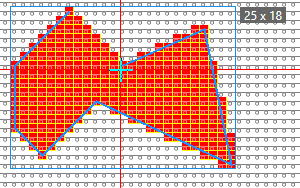
Draw a polyline with Echo Mode

  • Select 折线 .
    闭合和未填充
  • Enter a 线宽 value (e.g. 1).
  • Set the 间隙 to 0 (zero).
  • Select the 收放针步骤角度 option.
  • Select 预显模式画图.
  • Draw the 折线 (with yarn color red e.g.)
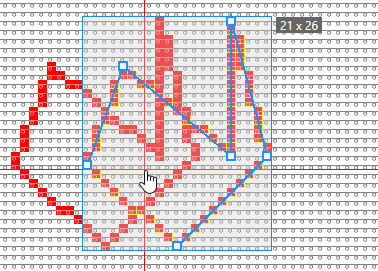
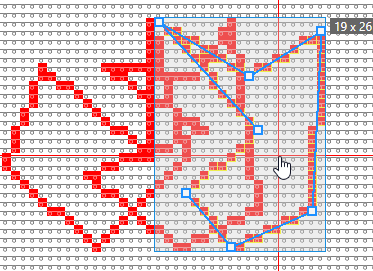
    After the second click, the echo with the handles appears.
  • Each line of the polyline receives handles, so that you can change the lines individually.

  • Apply the polyline to the pattern by ENTER.
    A new polyline appears with handles for moving and changing.
  • You can repeat the procedure as often as desired.