|
Create a frame
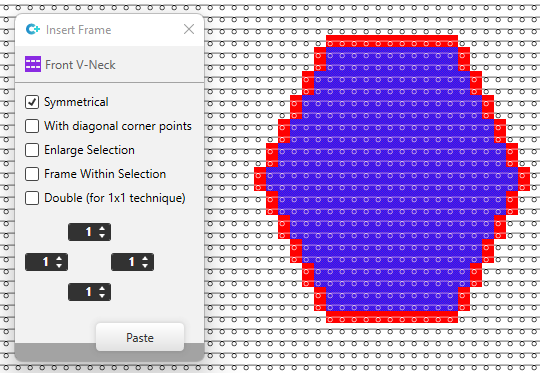
 对称. 对称.
|
- Select the area around which you want to create the frame.
- Select
 围框. 围框. - Select 对称.
- Set the width of the frame. (e.g. 1)
- Select the attributes by which you want to create the frame. (yarn color blue e.g.)
- Click on 应用 to create the frame.
|
|
Create a frame
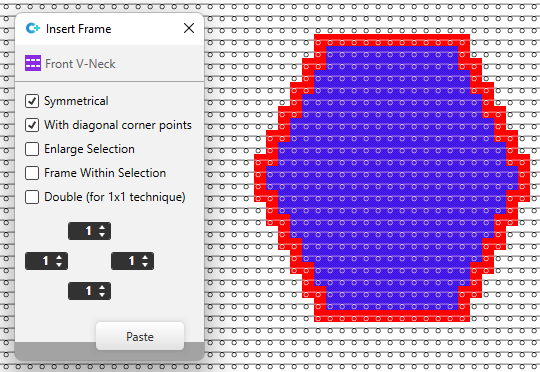
对称 and
对角线.
|
- Select the area around which you want to create the frame.
- Select 围框.
- Select 对称.
- Select 对角线.
The corner points and diagonal lines are filled. - Set the width of the frame. (e.g. 1)
- Select the attributes by which you want to create the frame. (yarn color blue e.g.)
- Click on 应用 to create the frame.
|
|
Create a frame with
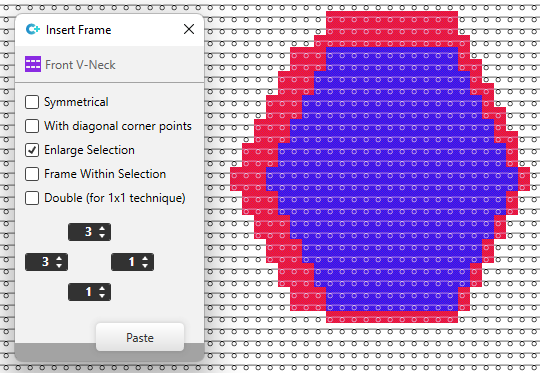
扩大选择区域.
|
- Select the area around which you want to create the frame.
- Select 围框.
- Select 扩大选择区域.
The frame is inserted and the selection extended by the frame width. - Set the width of the frame.
(e.g. left and top=3, right and bottom=1) - Select the attributes by which you want to create the frame. (yarn color blue e.g.)
- Click on 应用 to create the frame and to extend the selection.
|
|
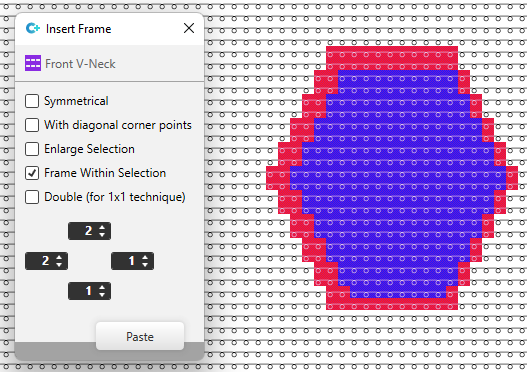
Create a 区域内围框.
|
- Select the area around which you want to create the frame.
- Select 围框.
- Select 区域内围框. The frame is created inside the selection border.
- Set the width of the frame. (e.g. left and top=2, right and bottom=1)
- Select the attributes by which you want to create the frame. (yarn color blue e.g.)
- Click on 应用 to create the frame.
|
|
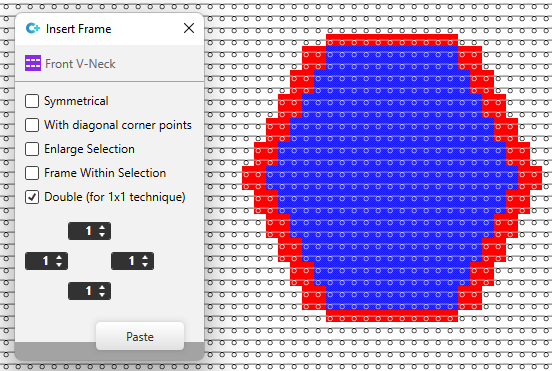
Create a frame with
罗纹并针(1x1 方式).
|
- Select the area around which you want to create the frame.
- Select 围框.
- Select 罗纹并针(1x1 方式) .
The frame is created with the entered width for top and bottom.
At the left and at the right, the frame is created double as wide. - Set the width of the frame. (e.g. 1)
- Select the attributes by which you want to create the frame. (yarn color blue e.g.)
- Click on 应用 to create the frame.
|