Specify Editing Layer
Editing Layer
If a shape is positioned on the pattern, you are able to edit the shape as well as the pattern independently from the other.
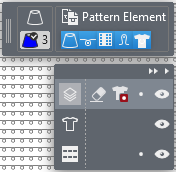
Below the display of the drawing attributes, a dialog box appears where you select the layer to edit and where you can make different settings.
|
|
Hide or display user control Hides or displays the entire layer control. | |
|
|
Hide or display the processing options Hides or displays the processing options of the different layers. | |
|
|
编辑结束层 In the Finishing layer you can make needle-exact adjustments to the positioned shape without having to adjust the lined shape. The changes are not transferred to the lined shape. | |
|
|
结束层橡皮擦 橡皮擦功能用于在结束层擦除不需要的内容。 | |
|
|
悬停模型淡化 淡化功能用于过滤模型层的数据 | |
|
|
封锁结束层 | |
|
|
切换结束层 | |
|
|
编辑线模型 (Y) If Edit Lined Shape Layer is active, appears the 模型编辑 ribbon. | |
|
|
切换线模型层 | |
|
|
编辑基本层 | |
|
|
封锁基本层 | |
|
|
切换花型层 | |
|
|
Move the shape on the pattern during the selection of the lined shape layer appears a button, that allows you to move the shape on the pattern. The shape is moved by steps of ten with a pressed CTRL key. | |


