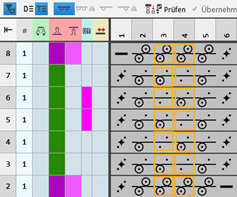
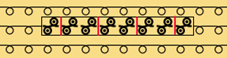
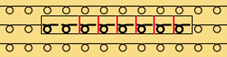
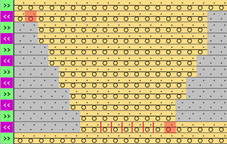
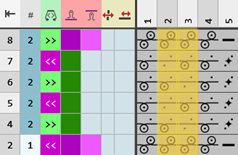
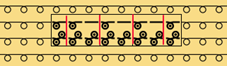
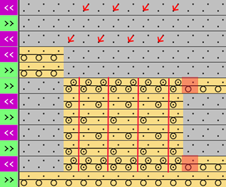
Example: Structure module with connecting points with repetition
Properties:
- A knitting-in and knitting-out row in the knitting element is defined by a connection point.
- A connecting point integrates the design row of the knitting element in to the design pattern.
- A knitting element may have one or more connecting points.
- Quantity of technical rows
- Even-numbered: Knitting-in and knitting-out on the same side
- Odd-numbered: Knitting-in and knitting-out on the opposite side
- Technical Rows
- Without entry of carriage direction
 : The structure module with connecting point can be mirrored.
 - With entry of carriage direction: The structure module with connecting point depends on the direction and cannot be mirrored therefore.
Create structure module with connecting points and repetition:
- 1
- Open the New Knitting Element dialog box with
 New Knitting Element.
- or -
In the Knitting Elements tool window / select the Generate a new module context menu.
 - 2
- Make the following settings:
- Knitting Technique
- All Needles
- Type of Knitting Element :
- Structure Module
- Filling Elements
- No yarn color / magazine color or yarn carrier color
- No Needle Action
- Dimension [stitches]
- Width : fix width
- Height : even-numbered or odd-numbered
- 1
- Close the dialog box with OK.
- The Knitting Element Editor is opened.
- 2
- Select the Needle Actions / Colors tab.
- 3
- In the drawing canvas, in the technical rows, draw the desired structure with the knitting needle action.
- The design rows are generated automatically and not displayed.
- 4
- If necessary, select a color for drawing.
-
Without color:
No allocation of a yarn carrier, i.e. color of the design pattern is used -
With color:
allocation of a yarn carrier, i.e. the used color is applied to the design pattern.: If desired, adapt this design row to the color of the structure module.
- 1
- Insert an empty column on the left and right side of the structure, if desired.
- The columns don't have any needle action.
- 2
- Overwrite these columns with
 Transparent.
 - 3
- Select the Control tab.
- 4
- Select the
 icon and draw it into the technical rows of knitting in and out.
Symbols Related to Needles in Executing Rows section -> Connecting Attribute: Not into the design rows! - 5
- If desired, allocate any desired color to the icon of the Definition Colors section.: No effect on the development, only for a better overview.
- 6
- Select the
 Following Repetitionsymbol.
Symbols Related to Needles in Executing Rows section → Repetitions - 7
- Define the repeating cycle related to columns by the selected icon.
- 8
- Enter the desired control column data in the technical rows:
- Stitch Length
- Fabric Take-down
- Cycle
- Carriage Direction
-
No entry of a carriage direction:
The knitting element is independent of the carriage stroke and can be entered on any desired pattern row of the Design Pattern. -
Entry of a carriage direction:
The knitting element depends on the carriage stroke and can must be entered on the corresponding pattern row of the Design Pattern.: All technical rows must have a preset carriage direction. - etc.
- 1
- If desired, apply the control column data from the technical rows to the design rows with the
 Control Columns button activated.
 - 2
- Select technical rows for grouping.
- 3
- Group the selected rows with the CTRL + G keys.
- 4
- Check the knitting element with
 Check regarding correct entries in the knitting element.
 - 5
- If necessary, in case of a knitting element already used in the design pattern, apply the changes to the basic pattern with the
 Apply button.
 - 6
- Close the New Knitting Element tool window with
 .
. - The knitting element is saved.
- 7
- Select a knitting element.
- 8
- Position the cursor in the Design Pattern.
- Make both of the following steps in order to insert the knitting element with repetition into the pattern.
Drawing with repetition element - Start sizing - Step 1 of 2 :
Start repetition sizing with mouse click in needle area or with <CTRL> + <Alt> and mouse move. Or with <CTRL> + <Alt> and mouse move.
Drawing with repetition element - Exit sizing - Step 2 of 2:
End repetition sizing with next mouse click.
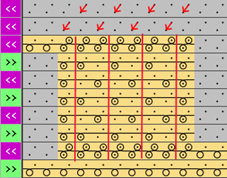
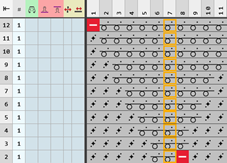
Examples for knitting element with a connecting point and repetitions
|
Odd-numbered quantity of technical rows in height | |||
|
Example 1 |
| ||
|
|
| ||
|
Example 2 |
| ||
|
|
| ||
|
| |||
|
Even-numbered quantity of technical rows in height | |||
|
Example 1 |
| ||
|
|
| ||