Pattern Item
Beside the entry in the Patterns tool window appear different icons depending on the processing status.
Run the following functions via these icons:
|
|
Double-clicking on the pattern name opens the pattern. |
|
|
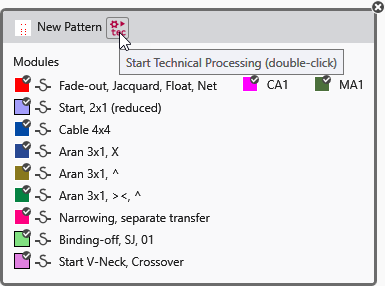
Start Technical Processing (double-click) |
|
|
Show Processed Symbol View (double-click) |
|
|
Generate Knitting Program (double-click) |
|
|
Show Knitting Program (Sintral) (double-click) Generate Knitting Program (CTRL + double-click) |
|
|
Start Sintral Check for generated knitting program (double-click) |
|
|
Sintral check is already processed. Restart Sintral Check for generated knitting program by double-clicking. |
|
|
A shape is positioned on the pattern. Open shape by double-clicking. |
|
|
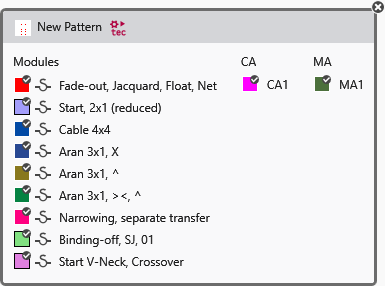
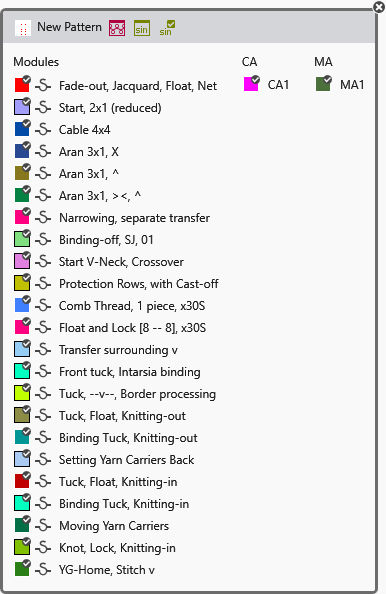
Opens a dialog box where all modules, CAs and MAs that are used in the pattern are displayed. It is opened with a double-click on a knitting element.
The icons for Technical Processing, Generate Knitting Program and Sintral Check appear in the header depending on the processing status.
The feature of the icons of the header is the same as in the pattern entry.
To close the window again, click on the cross at the top right corner. |



In addition to these icons the following icons can be represented overlapping (for example with the symbol view after processing):
|
|
The symbol view after processing was edited. |
|
|
The symbol view after processing is out of date. |
|
|
The symbol view after processing was edited and is out of date. |
|
|
The technical processing was canceled due to error. |


