Usage of Circle

Draw with or without attributes

  • If you selected cursor attributes, they will be applied to the pattern when drawing.
  • If you did not select any cursor attributes, the area will be selected.
    The selected area is available for further editing.

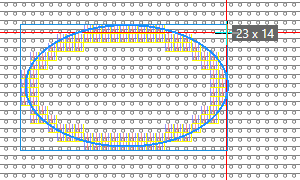
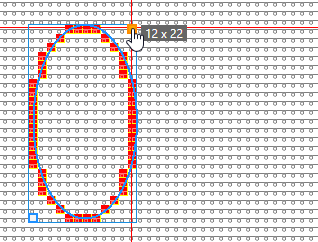
Draw an open, not filled ellipse.

  • Select CircleNot Filled.
  • Enter a Line Weight value (e.g. 2).
  • Set Offset X and Offset Y to 0 (zero).
  • Draw the Ellipse.(e.g. without attributes).
    Width x height of the ellipse appears in the tooltip.

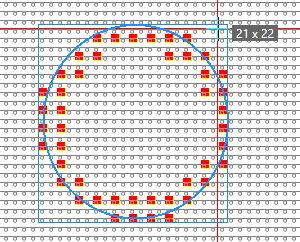
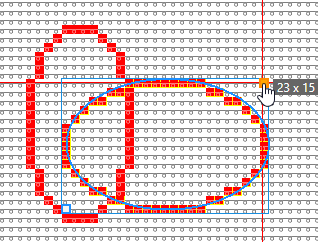
Draw an outlined circle by dot.

  • Select CircleNot Filled.
  • Set the Line Weight value (e.g. 3).
  • Set the value for Offset X (e.g. 1) and Offset Y (e.g. 2).
  • Select Circle or press the SHIFT key when drawing.
  • Draw the Circle (with yarn color red e.g.).
    Width x height of the circle appears in the tooltip.

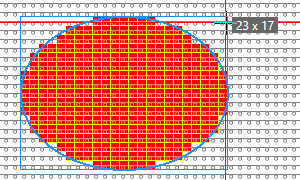
Draw a filled ellipse starting from the center

  • Select CircleFilled .
  • Set the value for Offset X (e.g. 0) and Offset Y (e.g. 0).
  • Select Start From Center.
    Only odd width and height possible.
  • Draw the Ellipse (with yarn color red e.g.)
  • The first mouse click specifies the center of the ellipse.
    Width x height of the ellipse appears in the tooltip.

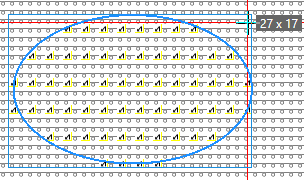
Draw a filled ellipse by dot with modules

  • Select CircleFilled .
  • Set the value for Offset X (e.g. 1) and Offset Y (e.g. 2).
  • Select a module (e.g. Pointelle, Stitch v).
  • Draw the Ellipse.
    Width x height of the ellipse appears in the tooltip.

Draw an open, not filled ellipse by the echo mode.

  • Select CircleNot Filled.
  • Enter a Line Weight value (e.g. 1).
  • Set Offset X and Offset Y to 0 (zero).
  • Select Drawing by Echo Mode .
  • Draw the Ellipse (with yarn color red e.g.)
    After the second click, the echo with the handles appears.
    You can change or move it.

  • Apply the ellipse to the pattern by ENTER.
    A new ellipse appears with handles for moving and changing.
  • You can repeat the procedure as often as desired.