Usage of Fill Line

Draw with or without attributes

  • If you selected cursor attributes, they will be applied to the selected area.
  • If you did not select any cursor attributes, the area will be selected.
    The selected area is available for further editing.


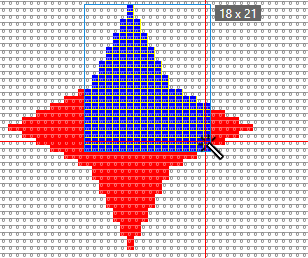
Search to the Left and Right

Background Color

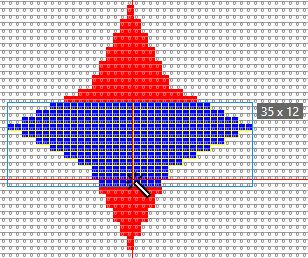
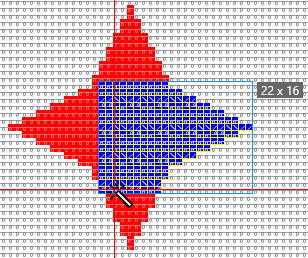
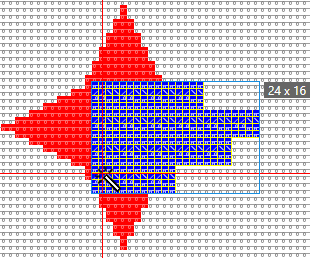
  • The red area is filled with the yarn color blue.
  • Starting with the first mouse click it will be filled to the left and to the right up to the color edge.
  • The first and the second mouse click define the top and the bottom edge.


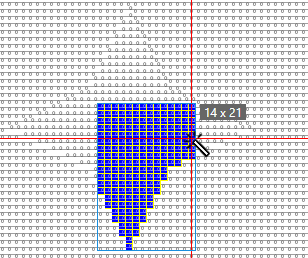
Search to the Left

Observe Selection

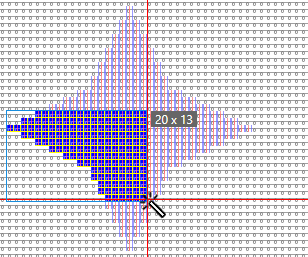
  • The selected area is filled with the yarn color blue.
  • Starting with the first mouse click it will be filled to the left and to the right up to the selected edge.
  • The first and the second mouse click define the top and the bottom edge.


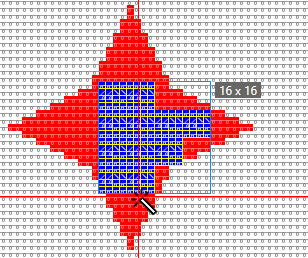
Search to the Right

Background Color

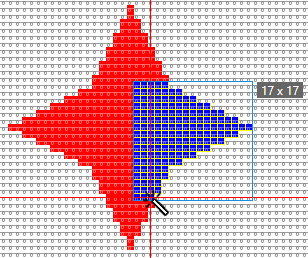
  • The red area is filled with the yarn color blue.
  • Starting with the first mouse click it will be filled to the right up to the color edge.
  • The first and the second mouse click define the top and the bottom edge.


Search to Top and Bottom

Background Color

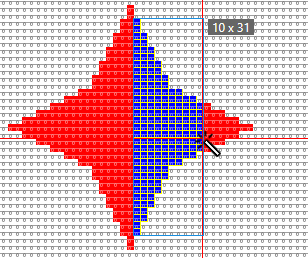
  • The red area is filled with the yarn color blue.
  • Starting with the first mouse click it will be filled to the top and to the bottom up to the color edge.
  • The first and the second mouse click define the left and the right edge.


Search to the Top

Background Color

  • The red area is filled with the yarn color blue.
  • Starting with the first mouse click it will be filled to the top up to the color edge.
  • The first and the second mouse click define the left and the right edge.


Search to the Bottom

Needle Action / Module

  • The rear stitch area is filled with the yarn color blue.
  • Starting with the first mouse click, it will be filled to the bottom down to the edge of the needle action.
  • The first and the second mouse click define the left and the right edge.


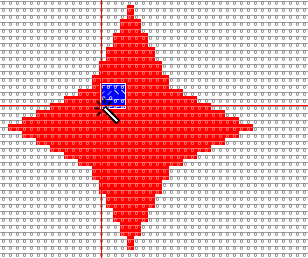
Search to the Right Test

Background Color

Fill with module and yarn color.

  • Click on the red area with module and yarn color.
    The position, on which it is clicked determines the positioning of the module.


Search to the Right

Background Color

Fill with module and Free Border.

  • Set the Fill property to Free Border.
  • The module is inserted as follows:


Search to the Right

Background Color

Fill with module and Exact to Border.

  • Set the Fill property to Exact to Border .
  • The module is inserted as follows:


Search to the Right

Background Color

Fill with module and Border Covered.

  • Set the Fill property to Border Covered .
  • The module is inserted as follows: