Usage of Multi-Copy

Insert a multiple copy of a module

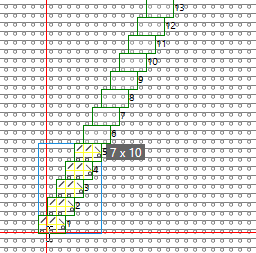
  • Select the module (e.g. Aran 2x1).
  • Set the quantity of Copies (e.g. 5).
  • Set the Offset X (e.g. 1) and the Offset Y (e.g. 2).
  • Click the module into the pattern.
  • The multi copy appears.

Change a multi copy in the pattern

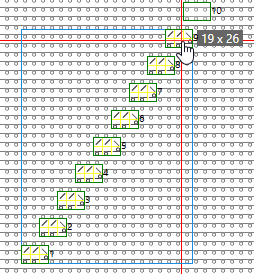
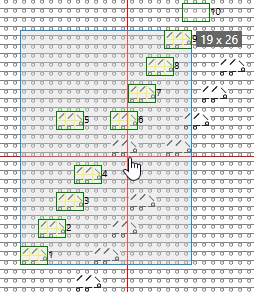
  • You can change the number of copies and the offset in the pattern as well.
  • Clicking on a numbered module copy will cause the quantity of copies to adapt exactly to this value.
  • Clicking and dragging a module copy will change the offset values.
  • Click Apply or hit the ENTER key in order to insert the module into the pattern.

Apply and Next

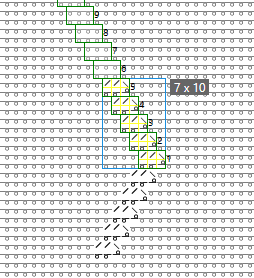
  • After making the settings to a multiple copy, you can apply them also to the pattern also by Apply and Next.
  • Then, at the end of the multiple copy, another repetition is available to you for editing.

Move elements manually

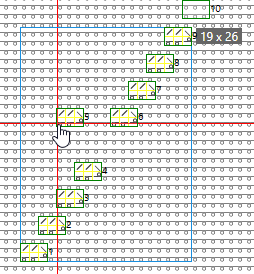
  • Select Move elements manually if you want to move individual modules of the copy.
  • Click on the module and drag it to the desired new position.
  • Click Apply or hit the ENTER key in order to insert the module into the pattern.

Resume copying the entire area

  • After applying the module to the pattern, the frame of the modules will remain.
  • You can move the frame with the modules and reposition it in the pattern.
  • Click Apply or hit the ENTERkey in order to insert the module into the pattern again.

Outside Shape
To the Left

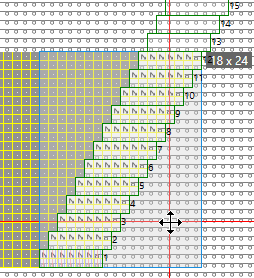
  • Set the area at the left or right of the modules (e.g. To the Left) with Multi-Copy to Outside Shape.