Specify Editing Layer
Editing Layer
If a shape is positioned on the pattern, you are able to edit the shape as well as the pattern independently from the other.
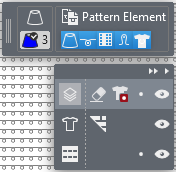
Below the display of the drawing attributes, a dialog box appears where you select the layer to edit and where you can make different settings.
|
|
Hide or display user control Hides or displays the entire layer control. | |
|
|
Hide or display the processing options Hides or displays the processing options of the different layers. | |
|
|
Edit Finishing Layer In the Finishing layer you can make needle-exact adjustments to the positioned shape without having to adjust the lined shape. The changes are not transferred to the lined shape. | |
|
|
Finishing Eraser Eraser drawing attribute to erase on the finishing layer. | |
|
|
Transparency of Pending Shape Transparency drawing attribute to mask out data of the shape layer. | |
|
|
Lock Finishing Layer | |
|
|
Toggle the Finishing Layer | |
|
|
Edit Lined Shape Layer (Y) If Edit Lined Shape Layer is active, appears the Shape Editing ribbon. | |
|
|
Fade-out the modules of the basic pattern which exceed the fade-out width of a shape line or a marking point. | |
|
|
Exceeding modules are hidden. | |
|
|
Toggle the Lined Shape Layer | |
|
|
Edit Pattern Layer | |
|
|
Lock the Pattern Layer | |
|
|
Toggle the Pattern Layer | |
|
|
Move the shape on the pattern during the selection of the lined shape layer appears a button, that allows you to move the shape on the pattern. The shape is moved by steps of ten with a pressed CTRL key. | |


