Marking Point Properties
You can call up the Marking Point Properties tool window in the context menu of a marking point.
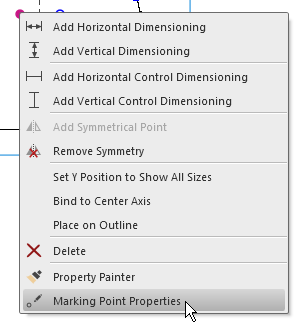
 How to call up the context menus
-

Back
Go to the previous marking point. -

Next
Go to the next marking point. -

Opposite
Jump to the opposite, mirrored marking point.
Properties of a Marking Point with Knitting Element:

A knitting element is allocated to the marking point.
- Inserting Direction

Open the picklist and select the desired orientation of the knitting element.
Insert a knitting element at the left side of a marking point.
Insert a knitting element at the right side of a marking point.
Properties of a Marking Point with Motif:
A picture or a graphic is allocated to the marking point
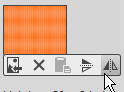
Select and import the file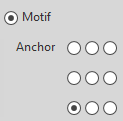
Define an anchor point for the motif.- The size of the graphic is displayed by stitches.
Each pixel corresponds to one stitch