Yarn properties (yarn from the image)
Scan a Yarn for the Fabric View
For a better representation of the knitted fabric, you can scan a yarn, create a stitch appearance from it and place it on the fabric view.
For this, proceed as follows:
- 1
- Scan a yarn with a conventional scanner and save this image file in any desired folder.
 Recommended yarn length: 30 cm It is important that the background of the yarn is black when scanning and that the light reflects the least possible.
- 2
- Click on
 Create Yarn from Image...
in the Knit Explorer.
Create Yarn from Image...
in the Knit Explorer.
- The Windows file explorer is opened. There select the scanned image of the yarn.
The newly generated image for yarn appears in the currently opened folder of the Knit Explorer.
That is why you need to be sure to be in the correct folder when you generate the yarn.
Yarn Properties Dialog Box
Open the Yarn Properties dialog box with double click on the newly generated image for yarn.
In the Yarn Properties dialog box, you make the following settings for the background information of the scanned yarn.
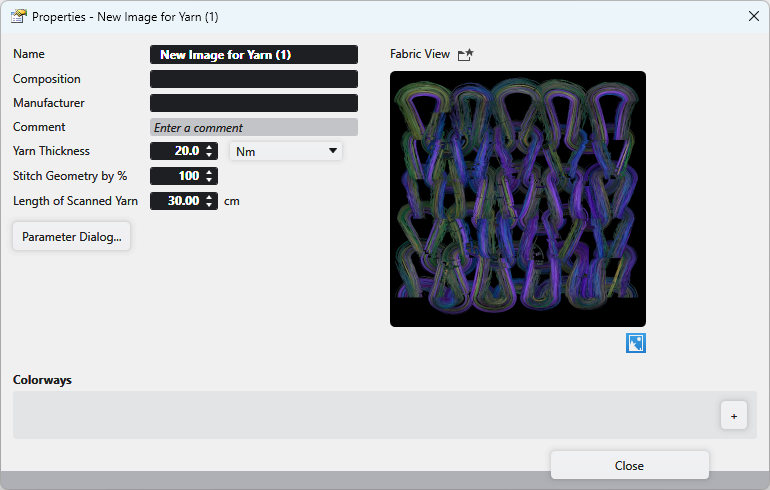
|
Name
|
Enter a name for the yarn. |
|
Composition
|
Describe the composition of the yarn. |
|
Manufacturer
|
Enter the manufacturer of the yarn. |
|
Comment |
Enter a comment. |
|
Yarn Thickness
|
Enter the |
|
Stitch Geometry by %
|
The stitch geometry determines the yarn thickness. This value affects the entire stitch uniformly. If Uniform Stitch Geometry |
|
Length of Scanned Yarn
|
Enter the length by cm of the scanned yarn. |
|
Parameter Dialog... |
Opens the Parameter dialog box where you make settings for the image of the scanned yarn. |
|
Fabric View
|
Opens an image with a magnified fabric view. |
|
Preview |
Shows a preview of the fabric view with the settings of the scanned yarn. |
|
|
The presentation corresponds to the settings of the scanned yarn. |



 is switched off, then the yarn thickness can be defined differently for the different areas of the stitch.

 This presentation is displayed in the fabric view, if you activate the
  Yarn Texture selection in the status bar.
Status Bar of Fabric View
Drag the yarn by drag-and-drop to the fabric view.
The pattern size is shown with the scanned yarn.
If you then make any changes in the yarn properties, then they are displayed in real time in the fabric view.