How to Create New Dimensions
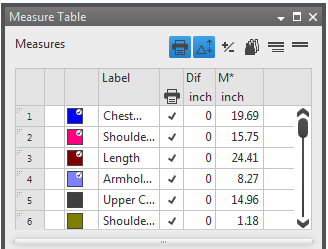
Measures
- Dimensions are length values with names
- They correspond to a variable with a name and are organized in a table.
- A dimension can be used horizontally and vertically.
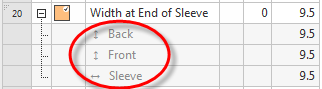
- You can use only one direction of the measure within one fabric piece.
- You can use a measure in both directions within one fabric piece by a formula.
- Dimension types:
- Independent, direct dimensions:
The value does not change within one size.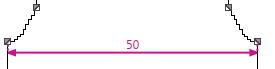
- Dependent, indirect dimensions (formulas):
Are calculated via a formula consisting of direct and indirect dimensions within one size.
e.g. Height is 1.2 * width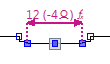
- separate tables for dimensions and formulas
- Sub-rows under the corresponding dimension display the use in the fabric piece.
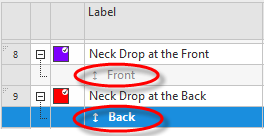
- The Dimensions and the measure unit result from the order analysis.
- As measure unit is set (cm).
- The dimensioned shape is open.
- The Dimensions
 tool window is open.
 Dimensions
- 1
- Open the context menu of the Row No. column of the Dimensions table.
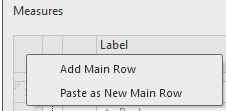
- 2
- Select .
- A row with a default designation is added at the bottom of the table.
- 3
- Click on the cell of the Label column.
- 4
- Rename the designation for the dimension.
- 5
- Enter the dimension in the preset measure unit in the M* column.
- The new dimension is available for dimensionings in the shape.
Clean up the table after completion:
Remove unused dimensions.
 Possible Following Steps:
How to Assign New Dimensionings
How to Enter Correction Values