Needle Data (Replace / Exchange)
 The description of the settings for Intercambiar, corresponds to the same for Sustituir, unless it is expressly indicated.
|
Datos de aguja
|
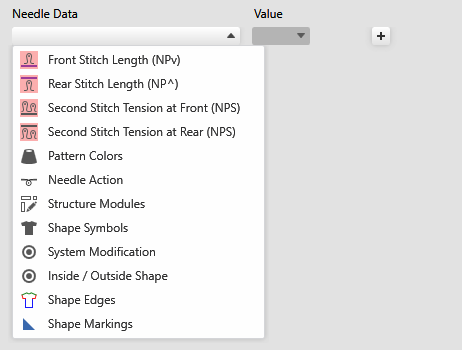
Select the needle data in the drop-down menu that are to be inserted. Depending on the selection different settings options are offered. |
|
Valor |
Enter a value that is to be inserted. |
|
|
Adds an input line for a new criterion for insert. You can define several criteria for insert simultaneously. |
|
|
Deletes the corresponding input line. |
|
|
Moves the criterion for insert to the control columns data.
|


 Only possible with stitch length.
|
|
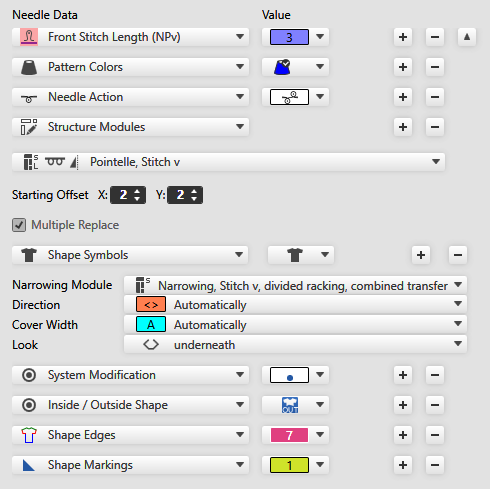
Select the value for the stitch length.
When replacing the stitch length in the area Needle Data, only needle-exact NP entries are inserted.
| |
|
|
Select the pattern color.
| |
|
|
Select the needle action.
| |
|
|
Select the structure module. All structure modules that are available in the Módulostool window, are offered directly for selection in the drop-down menu. You can also select any desired knitting element from the Knit Explorer. In the dialog box select the path and the desired module. | |
|
Offset de inicio |
Calculation of the position of the modules in the application area:
| |
|
|
Insert the modules only once or multiple times into the area for insert. | |
|
|
Select the shape symbol or the module type. If you select a module type, depending on the selection appear additional menus for Dirección, Anchura de superposición and Aspecto . | |
|
|
Select the symbol for No prensar or Devoré. | |
|
|
Select the symbol for inside or outside shape. | |
|
|
Select the shape edge. | |
|
|
Select the shape marking. | |


 With the
  With S-machines it is also possible to replace the second stitch tension.


 Y:
Y: 


