Working with the racking correction (VCI)
I. Open the Racking correction tool (VCI) window and select and change an entry in the local knitting element:
- The
 Correction du chevalement (VCI) control column is displayed.
- 1
- Open the
 Cable stitch 3x3 local knitting element with double-click.
 - 2
- Open the selection list in the Accueil ribbon at
 Fenêtre Outils
  and select
  Données Setup.
- or -
Directly under Paramètre click the Données Setup symbol. - The Données Setup tool window appears.
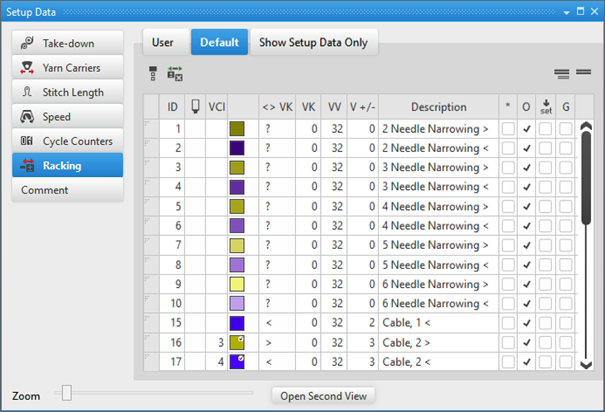
- 3
- Select the Par défaut tab.
- 4
- Select the desired racking correction index in the
 column and enter it in the knitting element, in the control column of the Transfer technical rows.
Options in the toolbar
|
| Selecting the default value to enter in the control column |
| Deleting an entry in the control column |
| Show Pattern-related Values |
| Hide Pattern-related Values |


Column labels of the racking correction (VCI) tool window
|
Column | Display | Setting range | |
|---|---|---|---|
ID / IDv / ID^ | Running numbering and sorting of the entries | ||
| Selecting the speed value to enter it in the control column | ||
VCI | Index for the indirect allocation of the racking correction | VCIn | |
Color | Display of colors to enter in the control columns | ||
| The column is displayed only in the tab | ||
| Lines (entries) newly added in the tab | ||
| Racking correction index from the tab | ||
<> VK | Direction of the racking correction
| n = A – Z < = to the left > = to the right | |
VK | Racking correction value | m = 0 -10, ? ? = undefined value m = 0: No correction | |
VV | Racking speed | VV = n | |
V +/- | Overracking
| V+/- n | |


|
Column |
Display | |
|---|---|---|
|
Description |
Comment on the use of the entry. | |
|
* |
|
Entry is not defined as favorite, meaning the entry is only within the Par défaut table available. |
|
|
Entry is defined as favorite, meaning the entry is available within the Utilisateur table or directly via the context menu of the control columns. | |
|
O |
|
Value cannot be overwritten (Overwrite) by a value of another table. |
|
|
Value can be overwritten (Overwrite) by a value of another table. (Standard) | |
|
|
|
The entry will not be applied to the Setup data
|
|
|
The entry will be applied to the Setup data.
| |
|
G |
|
All settings of the Par défaut or Utilisateur table are STOLL defaults (STOLL Template).
|
|
|
These settings of the Par défaut or Utilisateur table are now User Standards (User-Template)
| |

 : All entries used in the pattern are applied by default to the Setup data.
D'autres ordres de chevalement s'affichent en fonction du type de machine utilisé.