Specify Editing Layer
Editing Layer
If a shape is positioned on the pattern, you are able to edit the shape as well as the pattern independently from the other.
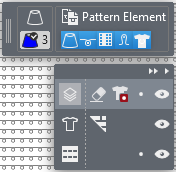
Below the display of the cursor attributes appears a dialog box where you select the layer you want to edit and are able to make different settings.
|
|
Hide or display user control Hides or displays the entire layer control. | |
|
|
Hide or display the processing options Hides or displays the processing options of the different layers. | |
|
|
Modifier couche de raffinement In the Finishing layer you can make needle-exact adjustments to the positioned shape without having to adjust the lined shape. The changes are not transferred to the lined shape. | |
|
|
Gomme de raffinement Attribut de dessin gomme pour effacer sur le calque de raffinement | |
|
|
Transparence de la forme en attente Attribut de dessin Transparence pour supprimer le masque des données du calque de coupe. | |
|
|
Verrouiller couche de raffinement | |
|
|
Afficher ou masquer le calque de raffinement | |
|
|
Modifier le calque de la coupe de ligne (Y) If Edit Lined Shape Layer is active, appears the Élaboration de la coupe ribbon. | |
|
|
Masquer les modules du dessin de base coupés par la largeur masquage de la ligne de coupe ou par un marquage. | |
|
|
Exceeding modules are hidden. | |
|
|
Afficher ou masquer le calque de la coupe de ligne | |
|
|
Modifier le calque du dessin | |
|
|
Verrouiller le calque de dessin | |
|
|
Afficher ou masquer le calque de dessin | |
|
|
Move the shape on the pattern during the selection of the lined shape layer appears a button, that allows you to move the shape on the pattern. The shape is moved by steps of ten with a pressed CTRL key. | |


 If two lined shapes are placed on a pattern, then two more shape symbols appear in the lined shape layer beside the symbol.
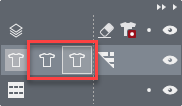
Click on one of these two symbols to select the desired shape.