Swiveling of the yarn carriers / Intarsia binding / Knitting out
I. Influence the swiveling of yarn carriers for an entire pattern row:
 Disegno design appears.
- The
 Assegnazione guidafilo control column is displayed.
- 1
- Position the cursor on the control column.
- 2
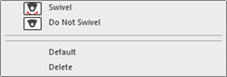
- Open the context menu with the RMB.
- 3
- Select the desired function e.g.
 Non oscillare.
| Function | Target |
|---|---|---|
| Oscillazione | Allow swiveling to the left or right |
| Non oscillare | Do not allow swiveling. |
| Standard | Enter the default setting into the control column |
| Elimina | Delete the entry from the control column
|

 : In a special case entries from knitting elements also can be entered.
- 4
- Draw-in in the desired pattern rows.
- In the pattern rows with the entry all the used Intarsia yarn carriers are not swiveled.
II. Influence the Intarsia binding for an entire pattern row:
- Disegno design appears.
- The
 Legatura per intarsio control column is displayed.
- 1
- Position the cursor on the control column.
- 2
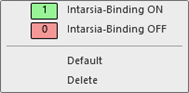
- Open the context menu with the RMB.
- 3
- Select the desired function e.g. Legatura per intarsio OFF.
| Function | Target |
|---|---|---|
1 | ON | Allow Intarsia Binding
|
2 | OFF | Prevent the Intarsia Binding |
| Standard | Enter the default setting into the control column |
| Elimina | Delete the entry from the control column
|
 : The type of binding is determined in the
 - 4
- Draw-in in the desired pattern rows.
- No Intarsia Binding will be entered into any color of the pattern rows with the entry Legatura per intarsio OFF.
III. Influence knitting-out for an entire pattern row:
- The Disegno design is displayed.
- The
 Fine lavorazione control column is displayed.
- 1
- Position the cursor on the control column.
- 2
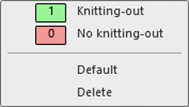
- Open the context menu with the RMB.
- 3
- Select the desired function e.g. Nessuna fine lavorazione.
|
| Function |
|---|---|---|
1 | Fine lavorazione | Allow knitting-out the yarn carriers. |
2 | Nessuna fine lavorazione | Prevent knitting-out the yarn carriers. |
| Standard | Enter the default setting into the control column |
| Elimina | Delete the entry from the control column
|
- 4
- Draw-in in the desired pattern row.
- In these marked pattern rows the yarn carriers will not be knitted-out.