Pick Attributes
With the F5, F6, F7, F8 and F9 keys you can pick-up attributes from the pattern to the cursor in the needle area and in the control columns.
Set the cursor on the desired attribute and press the corresponding key.
The attribute appears in the Cursor Attributes window and you can draw with this attribute in the pattern.
Picking by F5:
|
Within Needle Area |
The needle action or module at the cursor position appears in the cursor attributes.
F5
F5
|
|
Within Control Columns |
The current setting of the control column at the cursor position appears in the cursor attributes. |
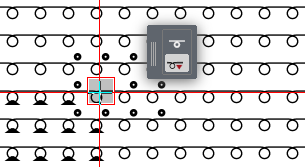
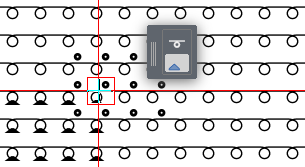
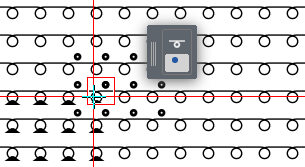
 Rolling picking is possible: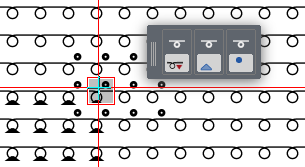
Picking by F6:
|
Within Needle Area |
The background color configured in the current view of the cursor position appears in the cursor attributes. The background color is configured in the status bar.
|
|
Within Control Columns |
The current setting of the control column of the cursor position appears in the cursor attributes. |
Picking by F7:
|
Within Needle Area |
The shape symbols and the edge colors of the raster-shape at the cursor position appear in the cursor attributes.
|
|
Within Control Columns |
The current setting of the control column of the cursor position appears in the cursor attributes.
|
Picking by F8:
|
Within Needle Area |
All attributes of the cursor position appear in the cursor attributes. |
|
Within Control Columns |
All attributes from all control columns of the cursor position, except the racking value, appear in the cursor attributes. |