Line Table
Each lined shape has its own Çizgi tablosu docked to the document window.
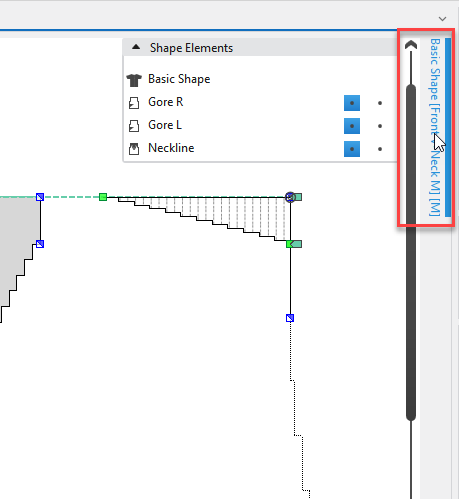
- The Çizgi tablosu is pinned to the upper right edge by default.
The table can be dragged to any desired edge of the document window. - You can expand the Çizgi tablosu and unpin it from the edge.
- The table always remains related to the same shape.
- You can dock the Çizgi tablosu again to the corresponding lined shape by the Yerleştir function in the context menu of the title bar.
- You can hide a docked Çizgi tablosu via the pin in the title bar.
- You can open and edit several line tables of different shapes at the time.
- You can copy areas of a Çizgi tablosu and paste them into another Çizgi tablosu
 Click on the red-framed areas of the image to access the description directly.
In the Çizgi tablosu tool window you make settings for the different shape elements. Each shape element consists of two tables containing the line properties for the left and right side of the shape element.
The different shape elements are available in the upper area of the tool window. Select the shape element that you wish to view or edit. The corresponding line properties are represented in the Çizgi tablosu tool window.
|
1 |
In this area you can find all shape elements of the active line shape. |
|
2 |
General settings in the upper pane of the tool window: |
|
3 |
In the context menu on the title bar of the table, select the columns that are to be displayed. Settings in the table: |