Creating the shape as lined shape in the pattern project
Open the  模型 tool window:
- 1
- In the 起头 ribbon under
 工具窗口, select the 模型 tool window.
 - In the tool window, the existing shapes of the pattern project are displayed.
- 2
- Place the cursor in the tool window and open the context menu with the RMB.
- 3
- Select 创建 M 码新模型... in the context menu.
- The 新线模型 dialog box will appear.
|
| ||
|
Input Format | ||
|
Stitch |
Entry in the table of the lined shape
| |
|
Steps |
Entry in the table of the lined shape
| |
|
Hand-Knitting (Courses) |
Entry in the table of the lined shape
| |
|
Rules for widening with hand knitting | ||
|
|
Knitting before widening following the start | |
|
|
Widening before knitting following the start (default setting) | |
|
从图片创建模型 |
|
No images will be used |
|
|
Use image as template | |
|
Comment |
Information about the shape | |
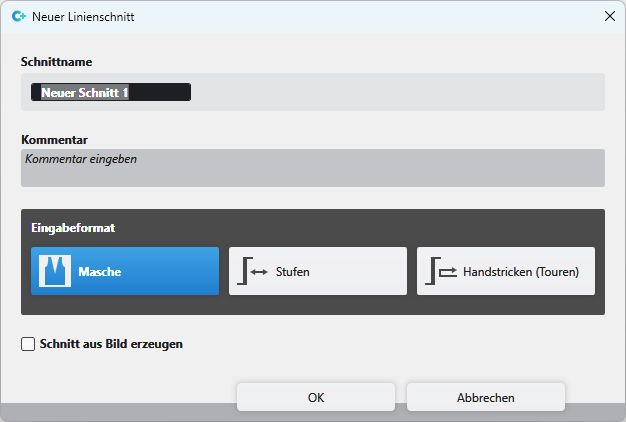
 : The stepping is converted based on the specification of the steps.


- 4
- Select the desired input format.
- 5
- Confirm with the OK key.
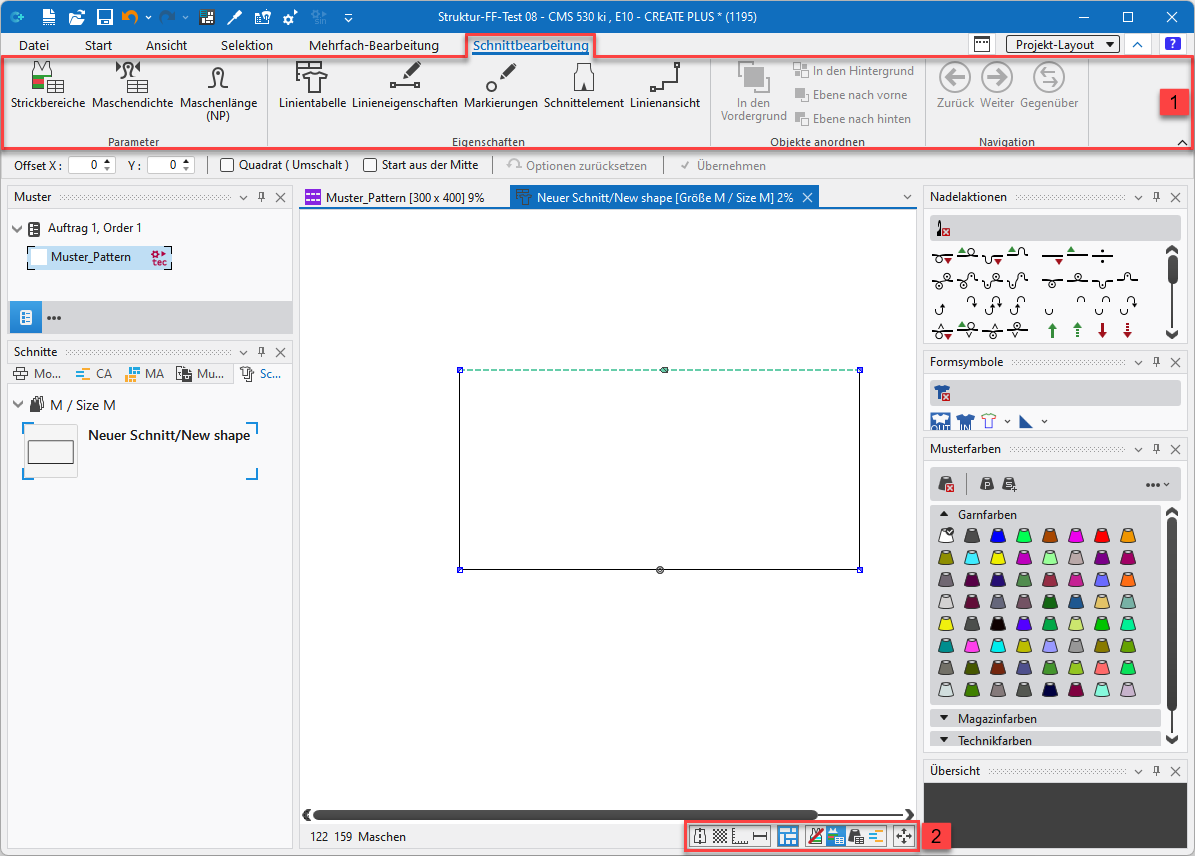
- The new lined shape (basic shape) is graphically displayed in the 模型 tab and in a new document window
 as rectangle.
 - Default attributes are used for the shape edges of the lined shape.
|
| |||
|
1 |
模型编辑 ribbon | ||
|
Parameter group | |||
|
|
编织区域颜色 |
Create new knitting areas and display existing knitting areas | |
|
|
线圈密度 |
Create new stitch density and display existing stitch density | |
|
|
线圈长度 (NP) |
Display of the | |


|
|
Properties group | ||
|
|
线表 |
Display of the line table for entering the shape data | |
|
|
线属性 |
Display of the line properties (attributes) of a selected shape edge | |
|
|
标记点属性 |
Display of the marking point properties (attributes) of a selected marking point | |
|
|
模型元素 |
Display of the shape element properties of a selected shape element
| |
|
|
线视图 |
Graphical display of a selected shape edge | |
|
2 |
Status bar in the document window for shapes | ||
|
|
Show Symmetry Axis | ||
|
|
Show Stitch Grid | ||
|
|
Show Chart Axes | ||
|
|
Show Control Dimensions | ||
|
|
Show Symbols of Marking Points | ||
|
|
Hide Knitting Ranges | ||
|
|
Show Knitting Ranges | ||
|
|
Show Knitting Ranges (yarn color) | ||
|
|
Show Knitting Ranges (CA color) | ||
|
|
Move the selected object with the arrow keys of the keyboard | ||


