Create a New Dimensioned Shape
- Select the basic shape type
 Set-in Sleeve with Shoulder Gore on the Start page under the New Dimensioned Shape section in the left detail column. Set-in Sleeve with Shoulder Gore on the Start page under the New Dimensioned Shape section in the left detail column.
- The possible settings for the selected shape type appear in the middle detail column.
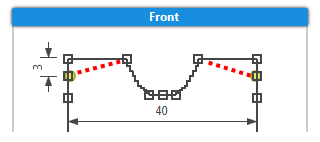
- Select the Shoulder with Marking option in the Shoulder
 list box. list box.
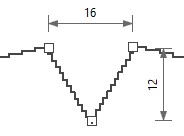
- Select the V-neck option in the Neckline and Opening list box.
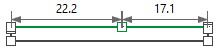
- Select the Left Shoulder option in the Seam Position of Collar list box.
- Keep the
 Widening above the armhole narrowing at the front check box deactivated. Widening above the armhole narrowing at the front check box deactivated.
- Keep the Widening above the armhole narrowing at the back check box deactivated.
- Select the Only Widening or Narrowing option in the Waist list box.
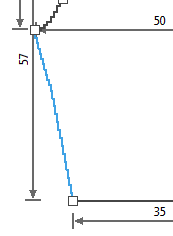
- Select the Upright to the Shoulder option in the Dimensioning of the Armhole list box.
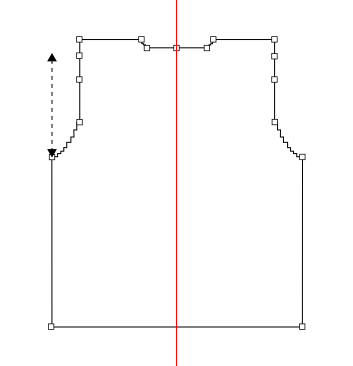
- Select the Up to the Start of the Shoulder option in the Dimensioning of the Sleeve Length: list box.
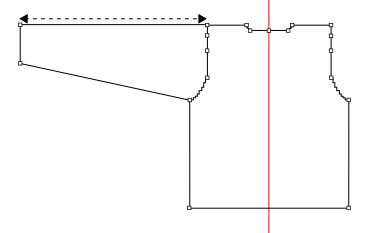
- Enter the value 21 in the Pattern group box under Stitch Density [10 cm] in the edit box for the Width

- Enter the value 28 in the edit box for the Height by Rows.
- Select the Stitch v, with Transfer option in the Filling Element list box.
- Enter the value 55 in the Waistband of Body group box in the edit box for the Width under Stitch Density [10 cm].
- Enter the value 30 in the edit box for the Height by Rows.
- Activate the
 Knitting Element for the Start check box. Knitting Element for the Start check box.
- The options for the waistband of the body appear.
- Select Start, 2x1 in the Start Module list box.
- Select the option 1 System in the Number of Systems list box.
- Select the option With elastic thread at the rear in the Elastic Thread list box.
- Select the option With protection yarn in the Protection Yarn list box.
- Select the option Loose row in the Transition list box.
- Select the Fair Isle + Doubling, Stitch v option in the Knitting Element for Doubling list box.
- Enter the value 55 in the edit box for the Width under Stitch Density [10 cm] of the Cuff of Sleeve group box.
- Enter the value 30 in the edit box for the Height by Rows.
- Activate the Knitting Element for the Start check box.
- Select Start, 2x1 in the Start Module list box.
- Select the option 1 System in the Number of Systems list box.
- Select the option With elastic thread at the rear in the Elastic Thread list box.
- Select the option With protection yarn in the Protection Yarn list box.
- Select the option Loose row in the Transition list box.
- Select the Fair Isle + Doubling, Stitch v option in the Knitting Element for Doubling list box.
- Go to the Collar and Trimmings.
- Enter the value 55 in the edit box for the Width under Stitch Density of the Start [10 cm].
- Enter the value 30 in the edit box for the Height by Rows.
- Enter the value 21 in the edit box for the Width under Stitch Density within Trimming [10 cm].
- Enter the value 28 in the edit box for the Height by Rows.
- Select the Stitch v, with Transfer option in the Filling Element list box.
- Activate the Knitting Element for the Start check box.
- Select Start, 2x1 in the Start Module list box.
- Select the option 1 System in the Number of Systems list box.
- Select the option With elastic thread at the rear in the Elastic Thread list box.
- Select the option With protection yarn in the Protection Yarn list box.
- Select the option Loose row in the Transition list box.
- Select the Fair Isle + Doubling, Stitch v option in the Knitting Element for Doubling list box.
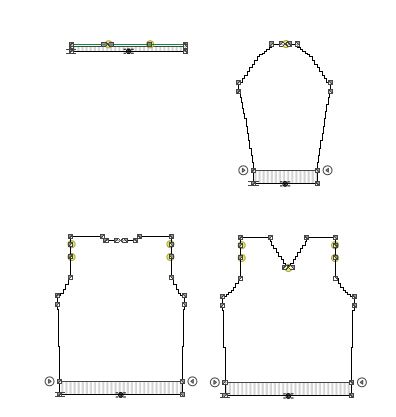
- Click the Create Dimensioned Shape button.
- The dimensioned shape appears in the Dimensioning View.
|