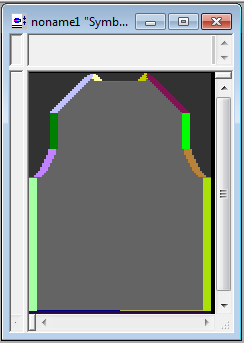
How to Load a Single Shape on an Existing Pattern
How to Import a Single Shape:
- The finished shape for all fabric pieces, graded to all desired sizes, is saved to a GKS shape file (*.gks).
- Existing pattern is running in the M1plus version≥ 6.1.
With the corresponding presettings: -
Desired machine
-
Sufficient size of the pattern
-
With or without start
- Call up the Shape / Open and Position Shape... menu.
- The Open dialog box appears with Shape Files(*.shv; *.shp, *.shr; *.gks) pre-selected
- Select the desired shape file (*.gks) and confirm with Open.
- The Select Single Shape dialog box appears.
- Select the desired size and fabric piece from the shape file.
-
Size

Picklist of all sizes within the shape file -
Shape
Picklist of all fabric pieces within the shape file - Select shape data from the shape file.
 Needle Actions
Apply filling elements and structures for basic pattern, knitting areas, shape edges and markings.- Colors
Apply colors for basic pattern, and knitting areas. - Stitch Lengths
Apply stitch lengths for basic pattern, knitting areas, shape edges and markings.
Take care of the transitions with different stitch lengths - doubling required? - Confirm the selection with OK.
- Pattern with the positioned shape appears.