How to Specify the Printable Content of a Shape File
The Content Layout specifies as a template the content and layout of the content for
all printouts of the shape file.
You can create and save an individual Content Layout to each shape file.
How to Specify the Content of Printouts:
- Without table of the stitch densities
- With hints concerning the collar
- Open the Print dialog box of the Backstage View.
 Print
Print - Click the
 Content Layout… button.
- The Content Layout dialog box appears with predefined layout and content.
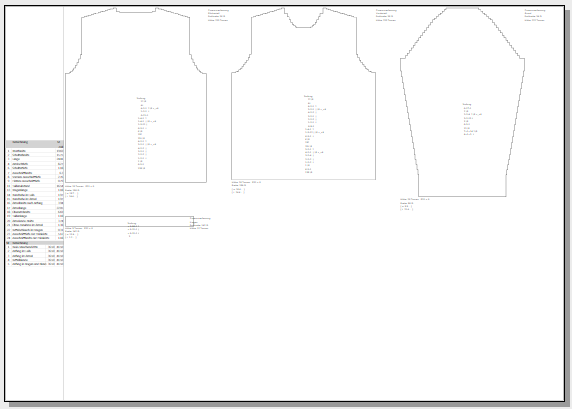
- Open the Text Boxes picklist and select User Defined....
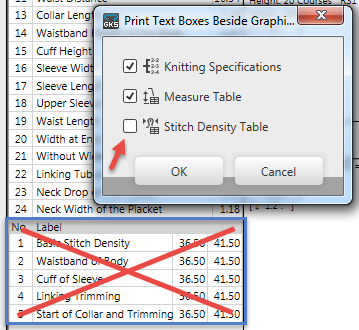
- The Print Text Boxes Beside Graphics dialog box appears.
- Deactivate

 Stitch Density Table.
- Close the Print Text Boxes Beside Graphics dialog box with OK.
- The table will be hidden in the preview and not be printed on the graphic page.
- Move the cursor under the collar in the preview.
- Call-up the Insert Text context menu.
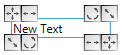
The text box appears at the cursor position.- Type the desired hint and formate it.
For example Do Not Wash!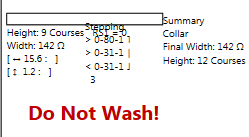
- Exit the Content Layout dialog box.
- The print preview appears without stitch density table and with the hint.
All printouts of this shape file will use this content and layout of the content.
-
You can change the hint for individual printouts of this shape file in the Print Preview dialog box.
 Print Preview (dialog box)