Fill selection
With  you fill a cursor function in the selected area. If a module is selected, it is filled in the border area of the selection in accordance with the settings in the Module Data toolbar.
In the Tool Properties toolbar, you see the following properties:
- Picture and name of the selected module or arrangement
- Active drawing tool
- Active data (module, color, stitch length)
- Note on the behavior of drawing tool
Fill the active cursor functions in an existing selection:
- A selected area is available.
- Several selections are possible.
- 1
- Select the module from the Module bar or the Module explorer.
Example: Cable 2x2< - 2
- Select the settings for filling with modules in the module data toolbar.
Example:
- 3
- Click the icon from the Drawing tools toolbar.
- or -
Press the key combination Alt + F5.
- The Tool Properties toolbar displays the selected module, the drawing function and the symbol for modules.
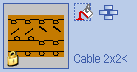
- 4
- Click on a position within or outside the selection.
The position specifies the start point, from which the selection will be filled.
- The selected area is filled with the selected module in accordance with the settings in the module data toolbar.
Fill the entry of the control column into several selected rows:
- Several rows are selected.
- Several selections are possible.
- 1
- Select the entry of the context menu of a control column.
- 2
- Click the icon from the Drawing tools toolbar.
- or -
Press the key combination Alt + F5. - 3
- Click into the pattern within or outside the selection.
- The control column of the selected rows will be filled with the selected entries.